Preview of Version 5.0
We are launching a total overhaul of the Paramedic Protocol Provider platform in summer 2026. There are several new features coming and we wanted to give you a sneak peek at what's coming!
Home Page and Navigation
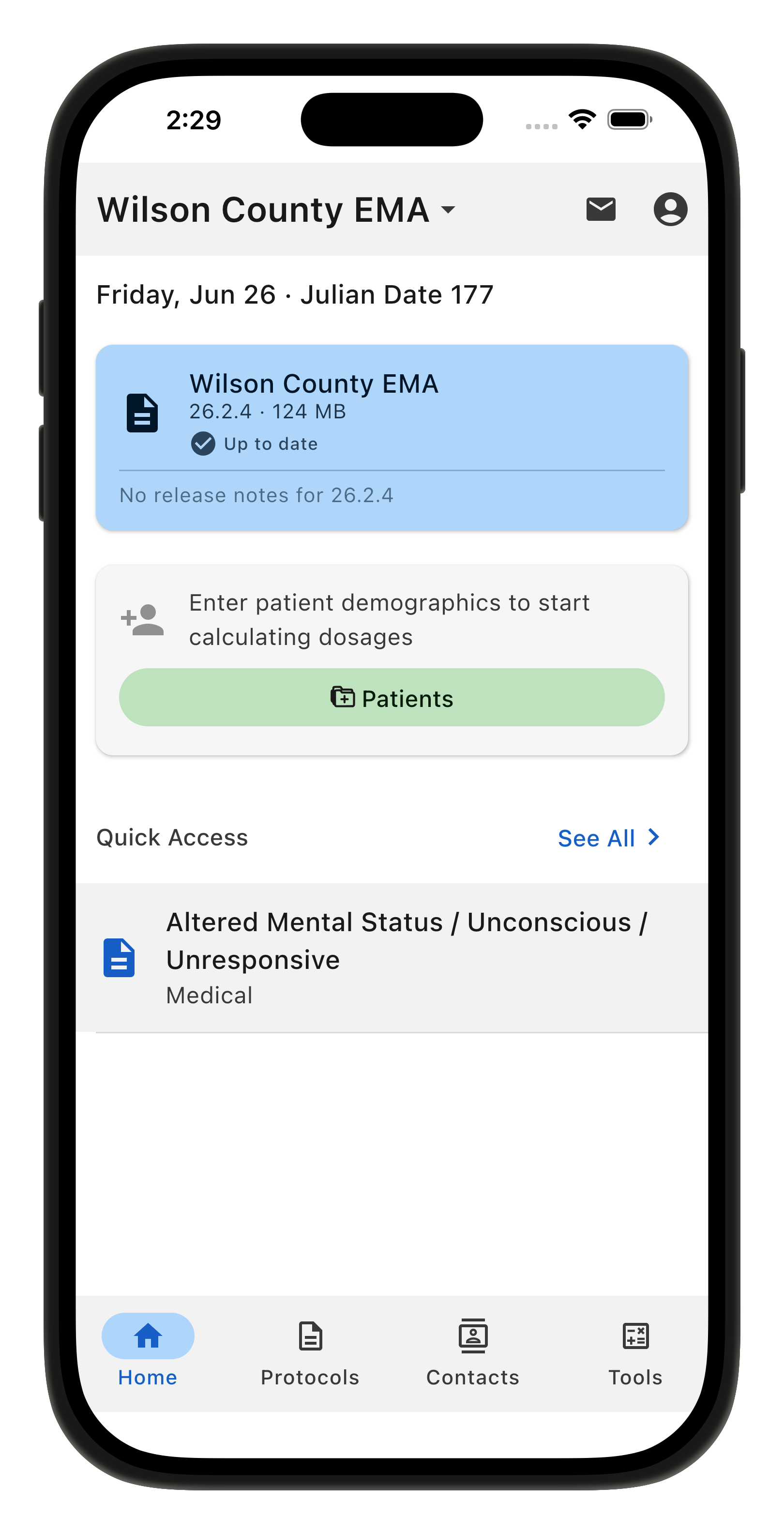
The new home page will include release notes (if provided by your system administrator) to quickly show what’s new with each update.
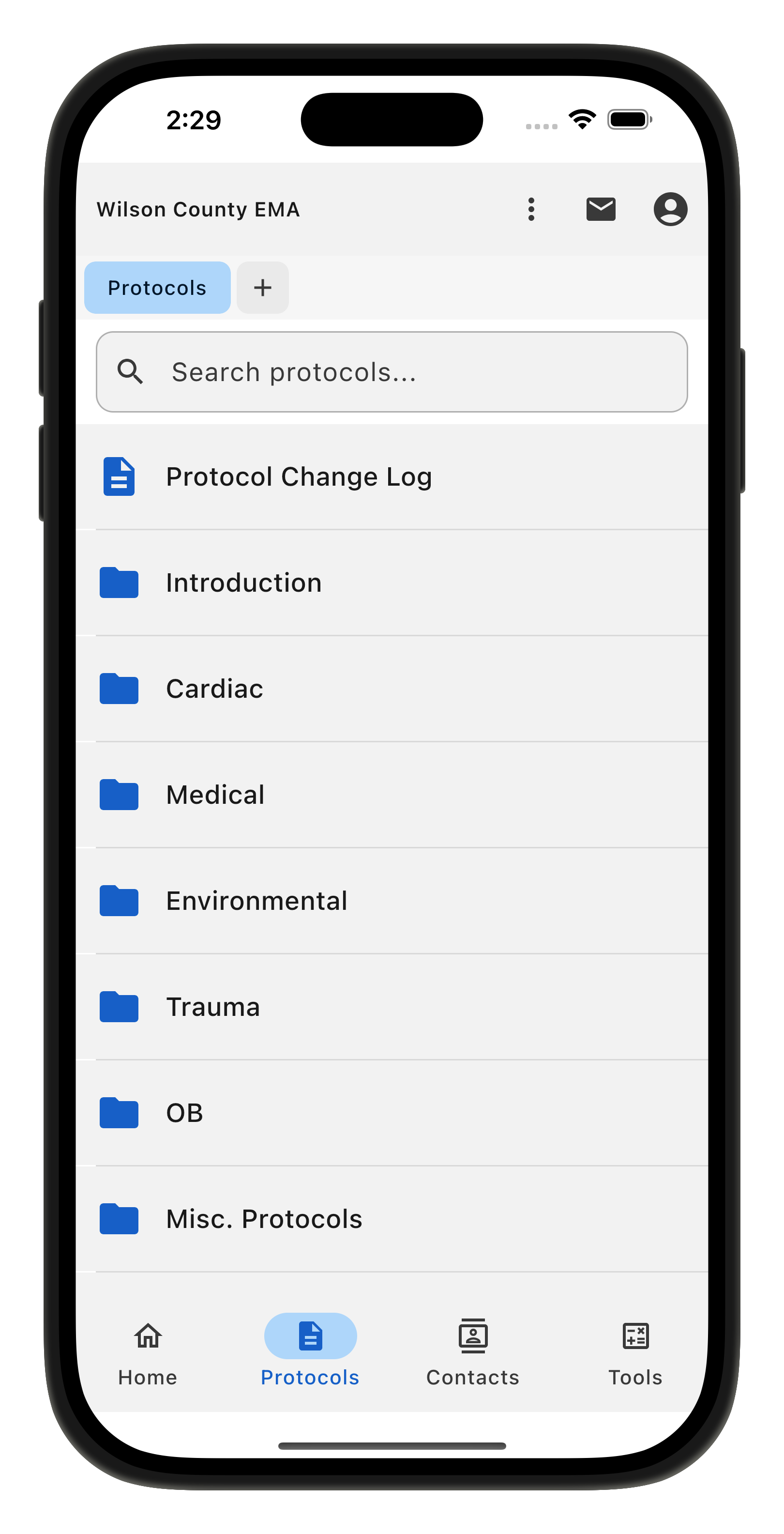
The Protocols tab functions much the same as before with folders and subfolders.
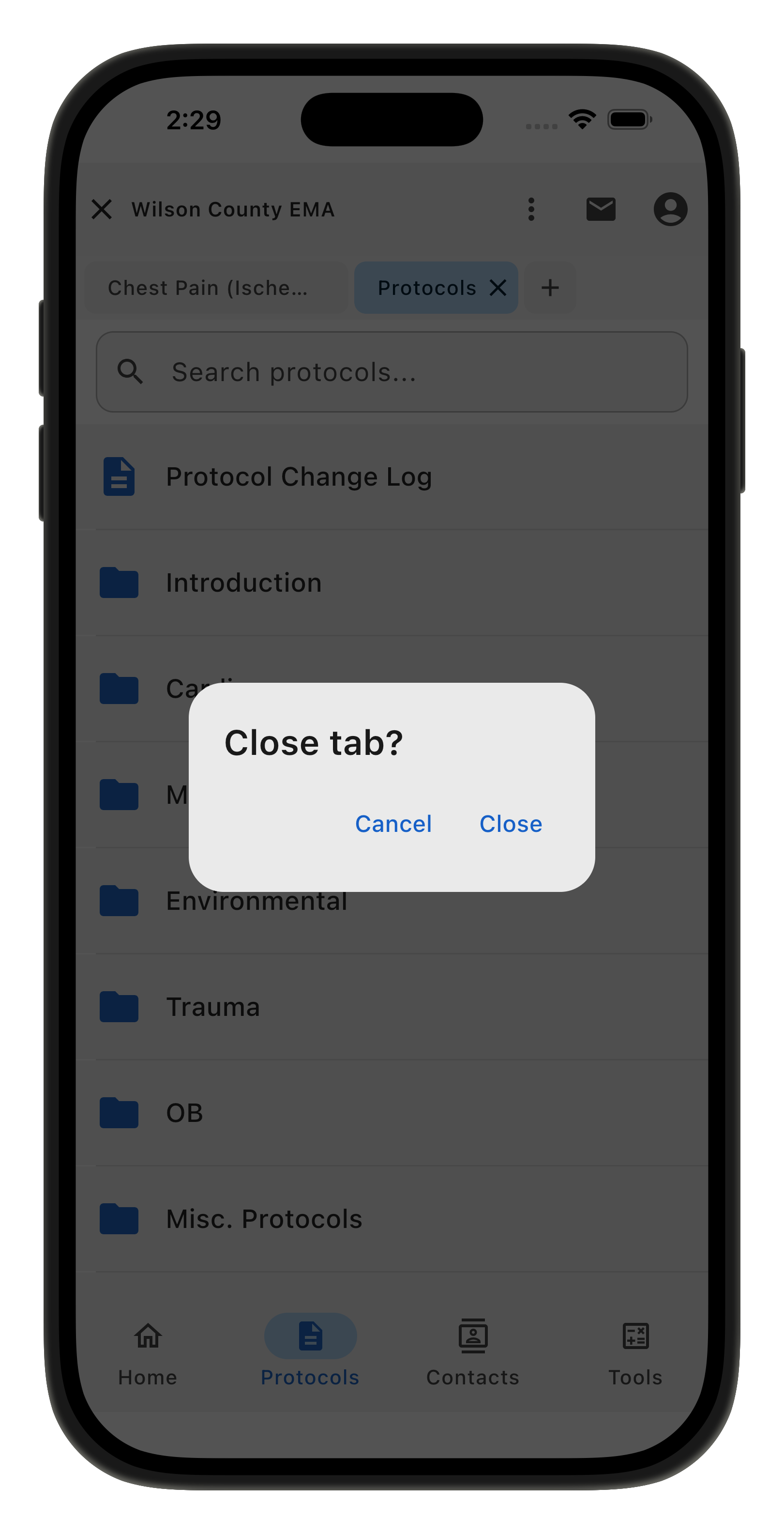
You will now be able to have multiple tabs open at once while viewing protocols.
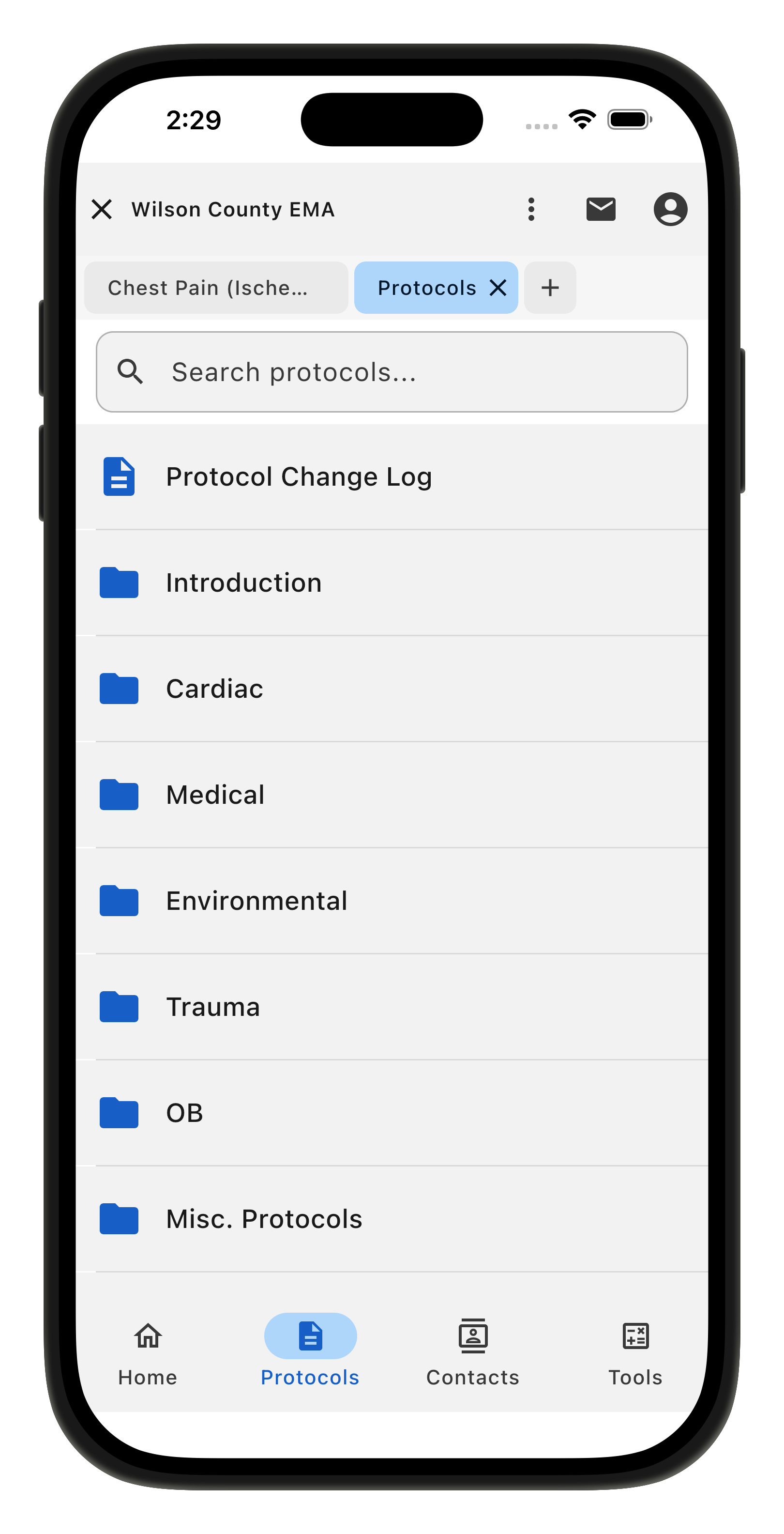
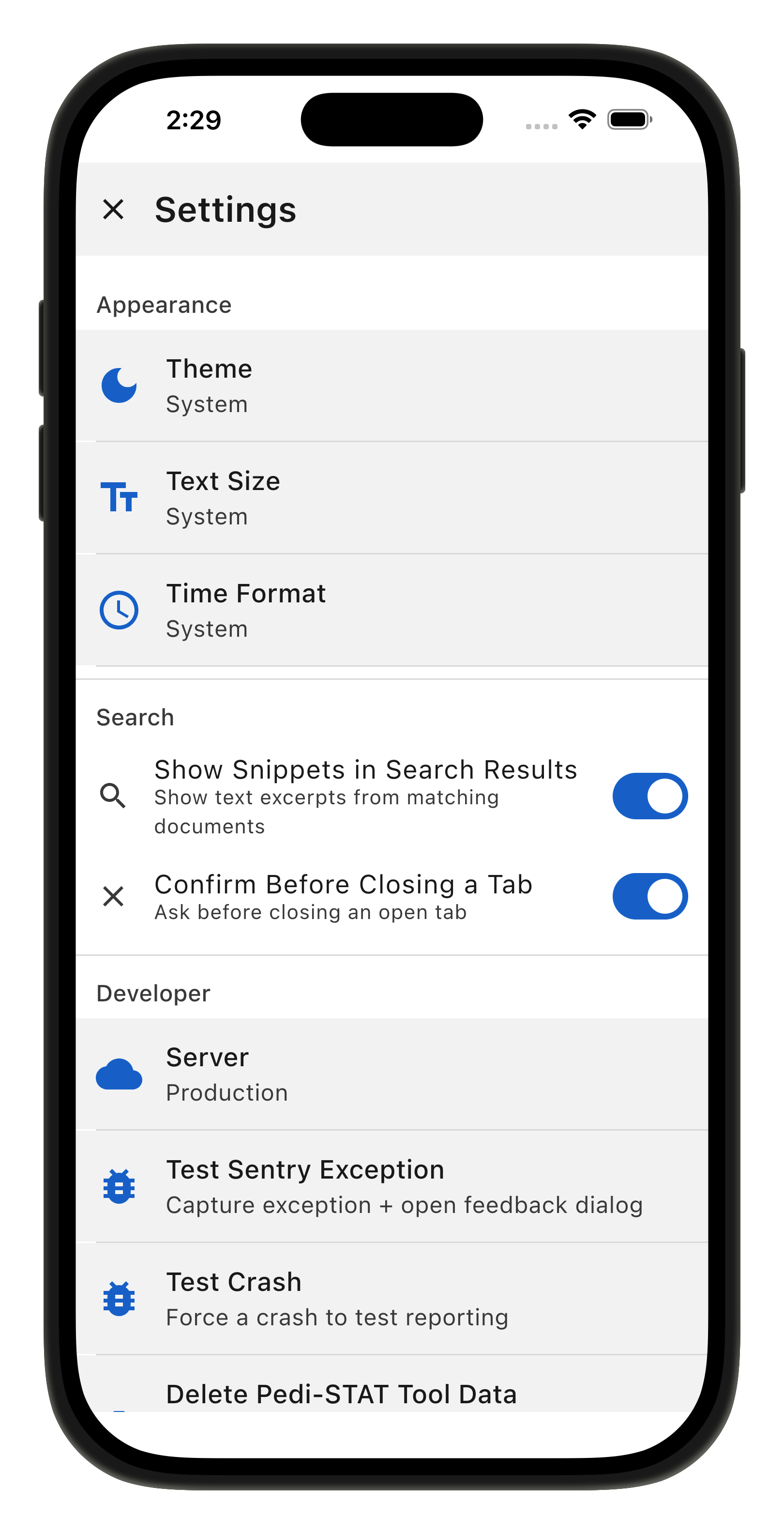
By default if you close a tab a popup will appear to confirm your intent. This can turned off on a per-device basis in the app settings. You can access settings by tapping the profile icon in the upper right.
Searching Documents and Contacts
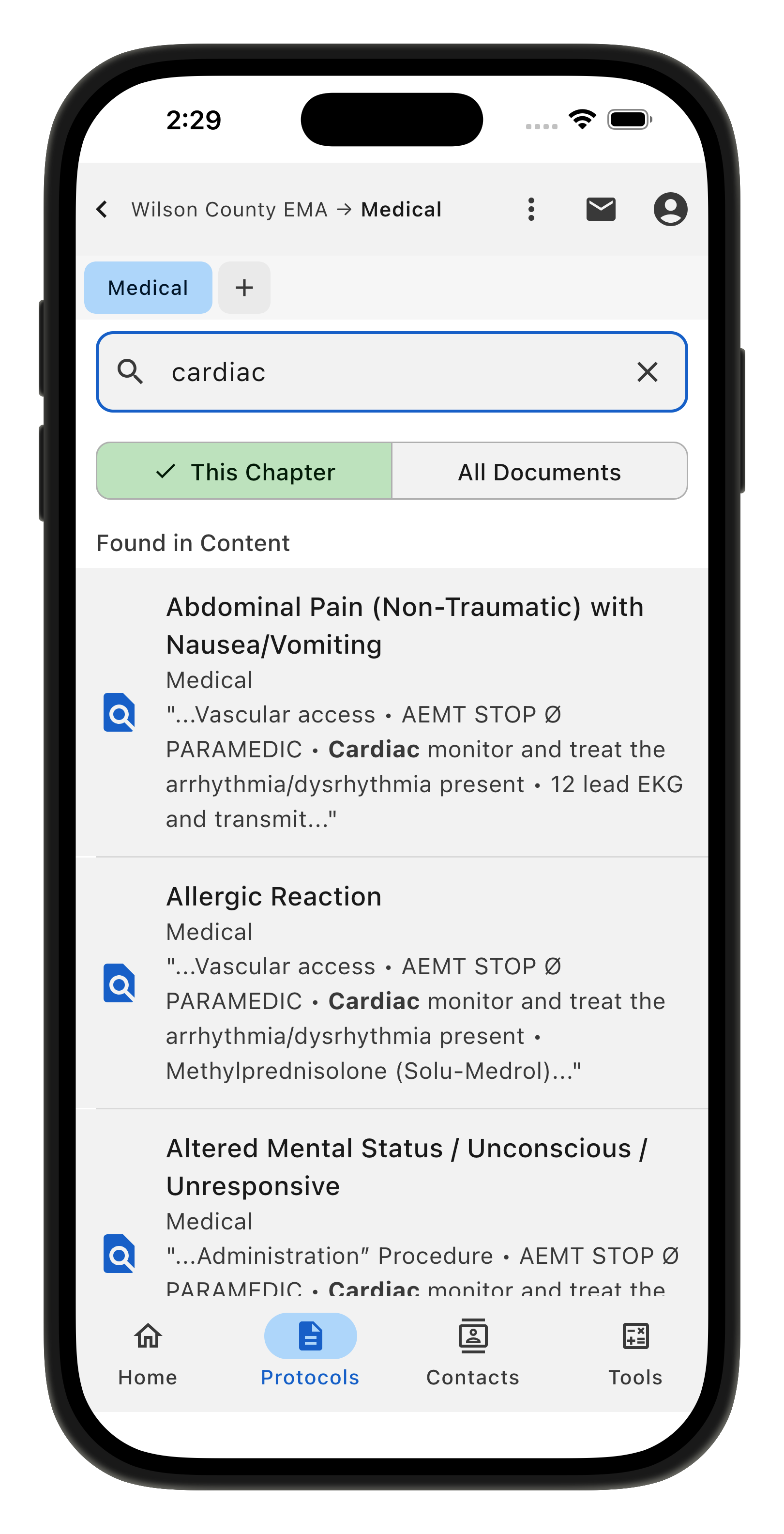
The search bar can search all content in the app (like the previous version), or you can choose to narrow your search search to your current directory. Matches are also previewed under each item. If this makes the results too cluttered for you, it can be disabled in the app settings.
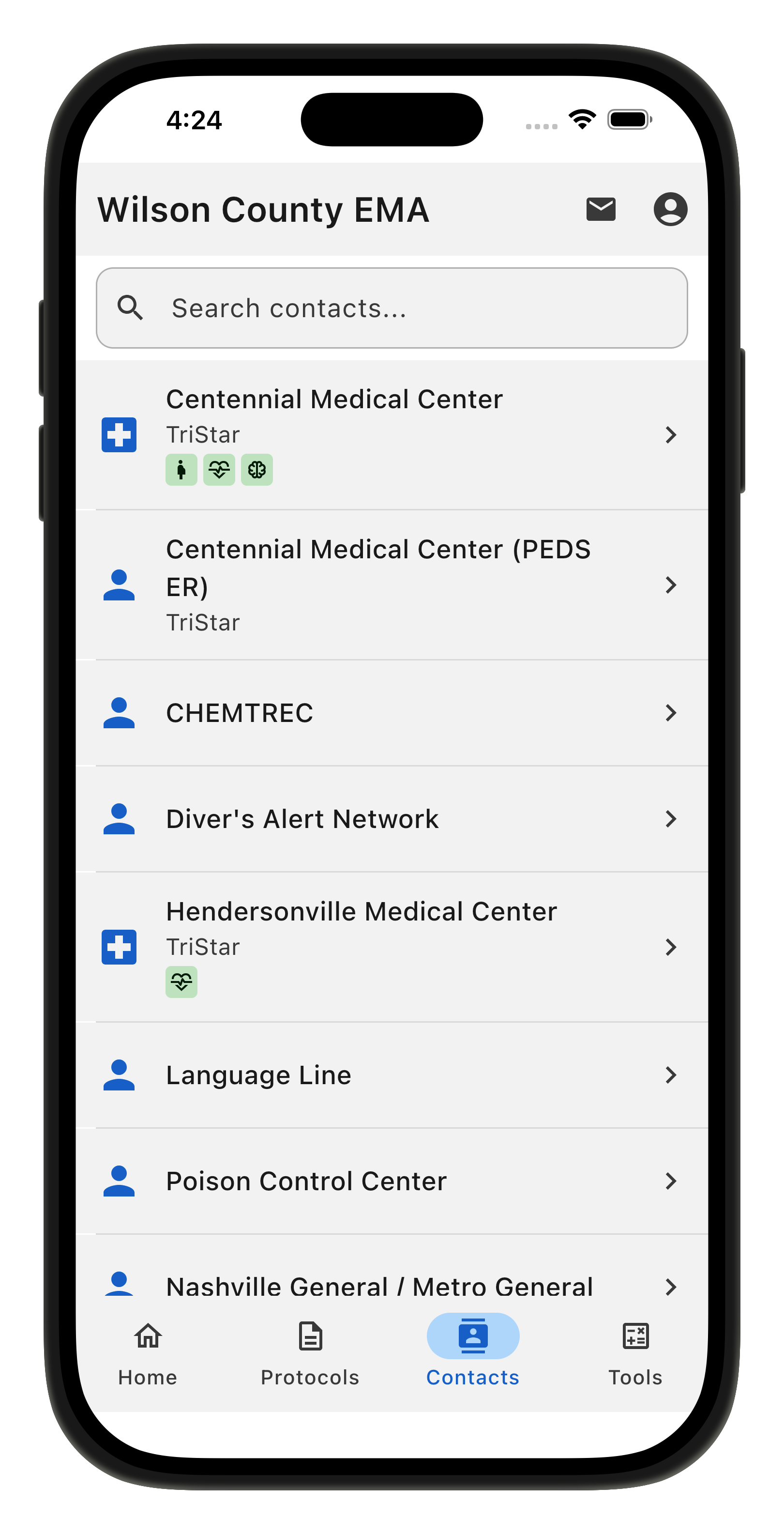
The contacts tab now has a search bar to help you find your needed contact without scrolling.
Quick Access (was Favorites) and Notes
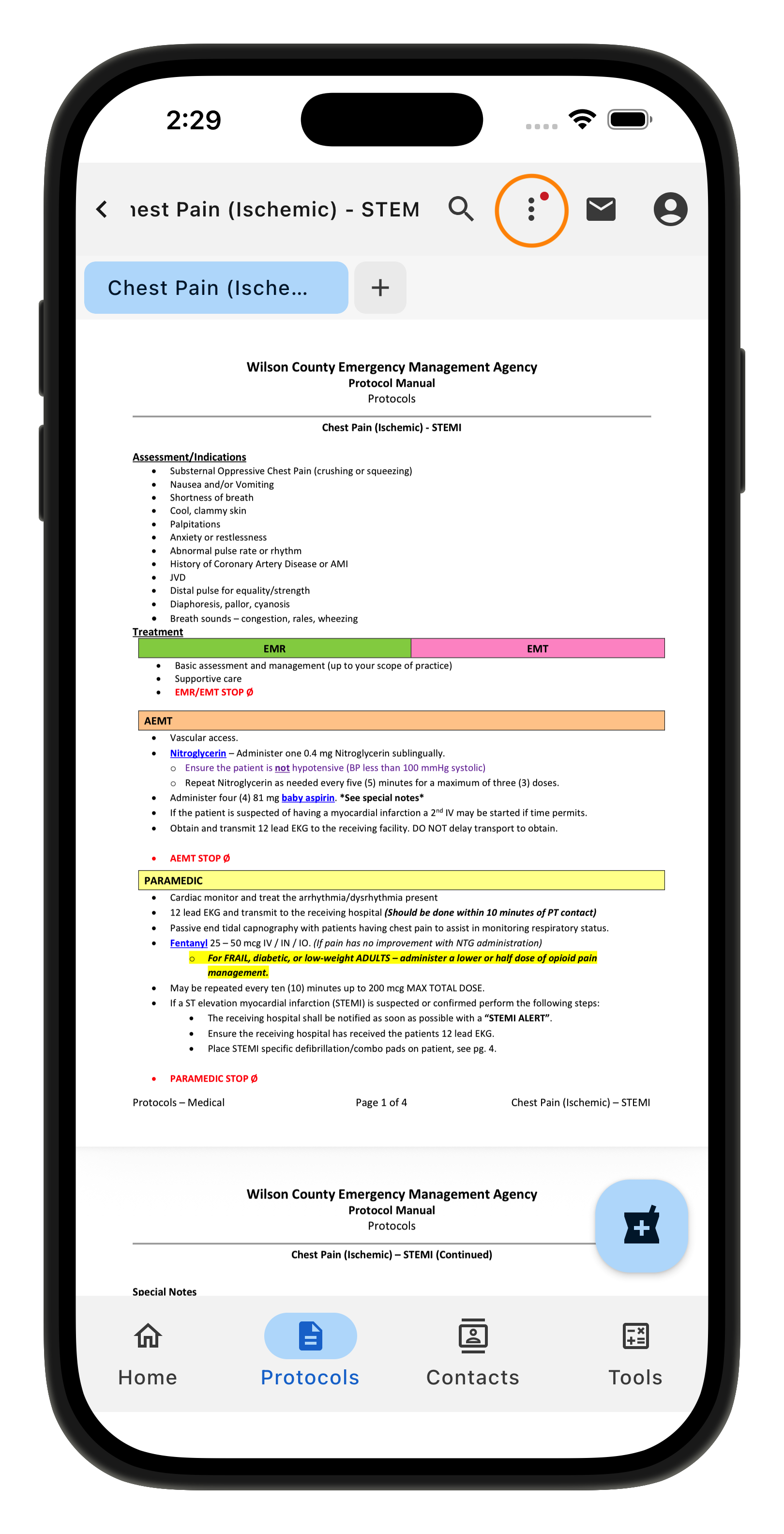
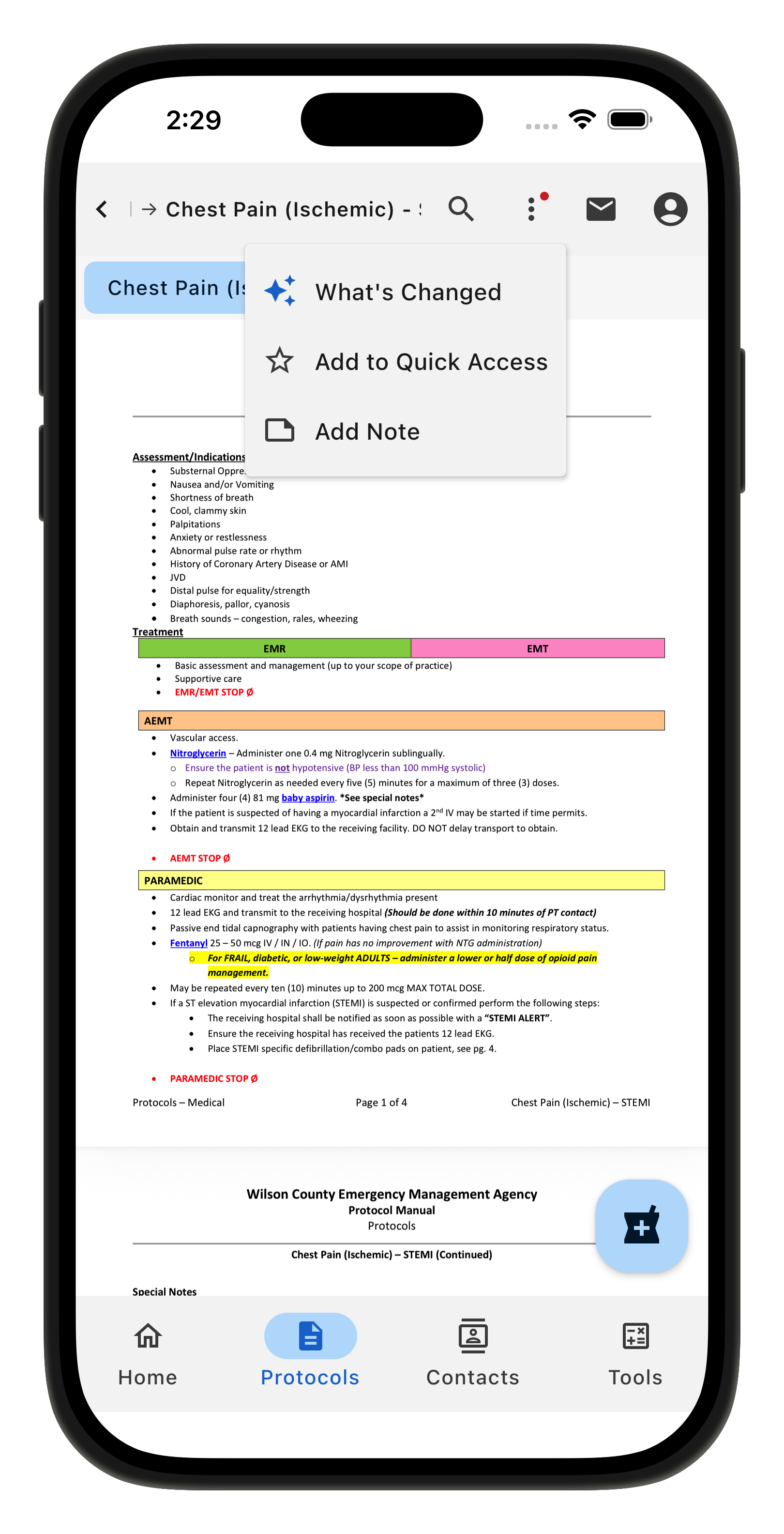
When viewing a protocol you can easily add it to your Quick Access (formerly known as “Favorites”) or add a note by tapping the three vertical dots at the top.
Protocol Change Notes
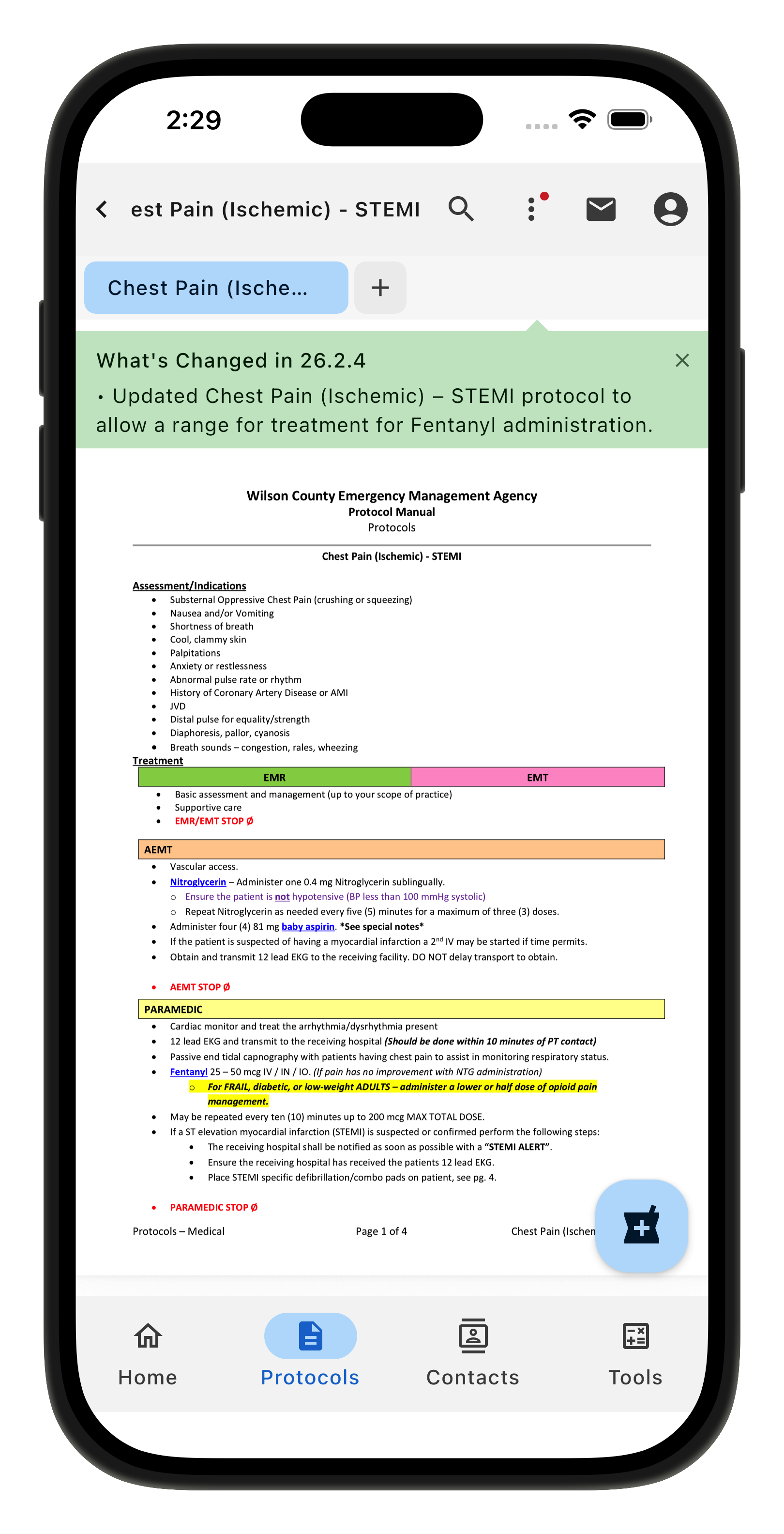
If your administrator has provided any document change information you'll also be able to access that note by tapping the three vertical dots and hitting "What's Changed"
New Features for the Medication Calculator
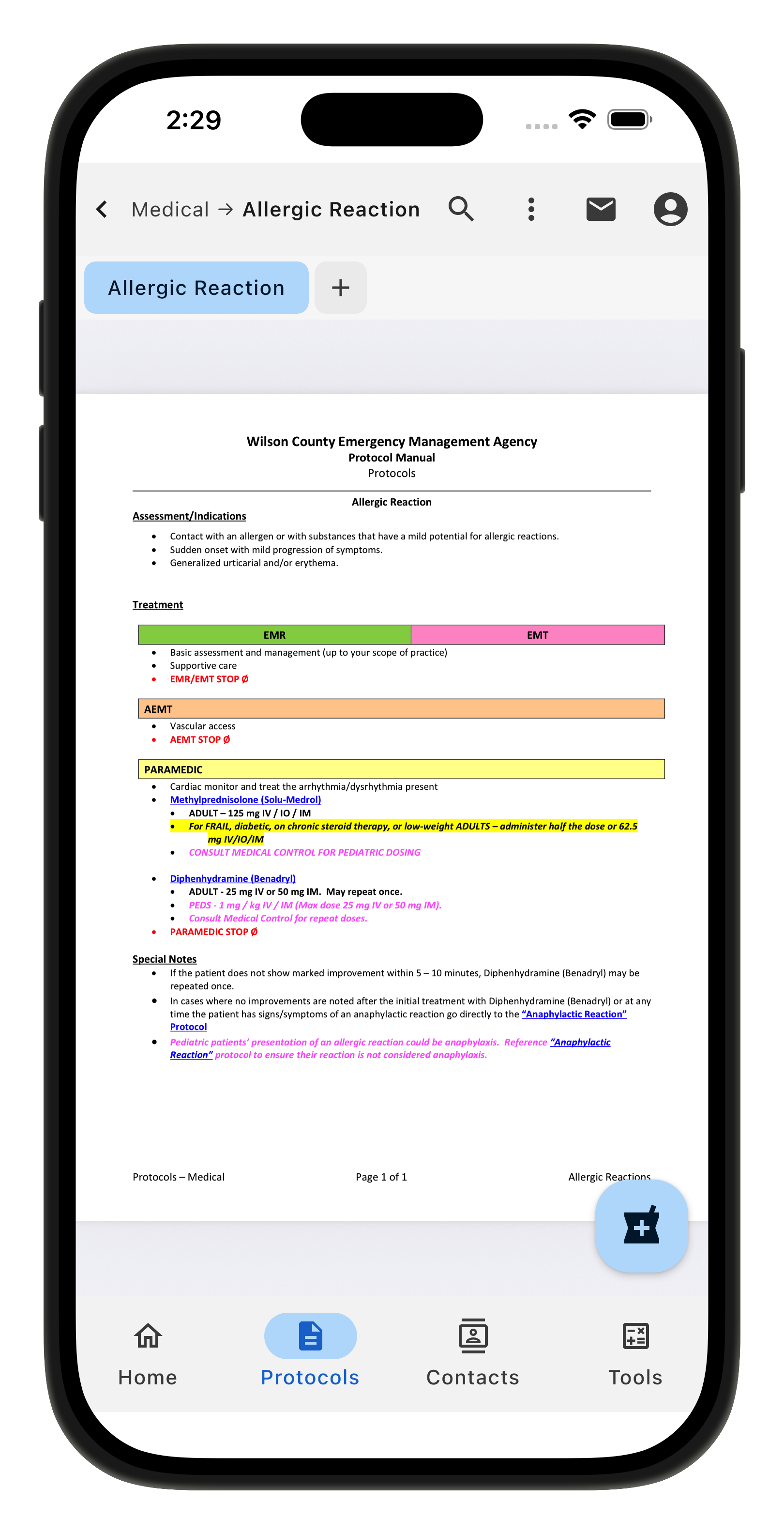
If your agency is utilizing the medication calculator and the protocol has dosing information, you will see the formulary button in the bottom right.
Patient Center
Tapping the formulary button will open the Patient Center where you can create a new patient or continue work on an existing patient.
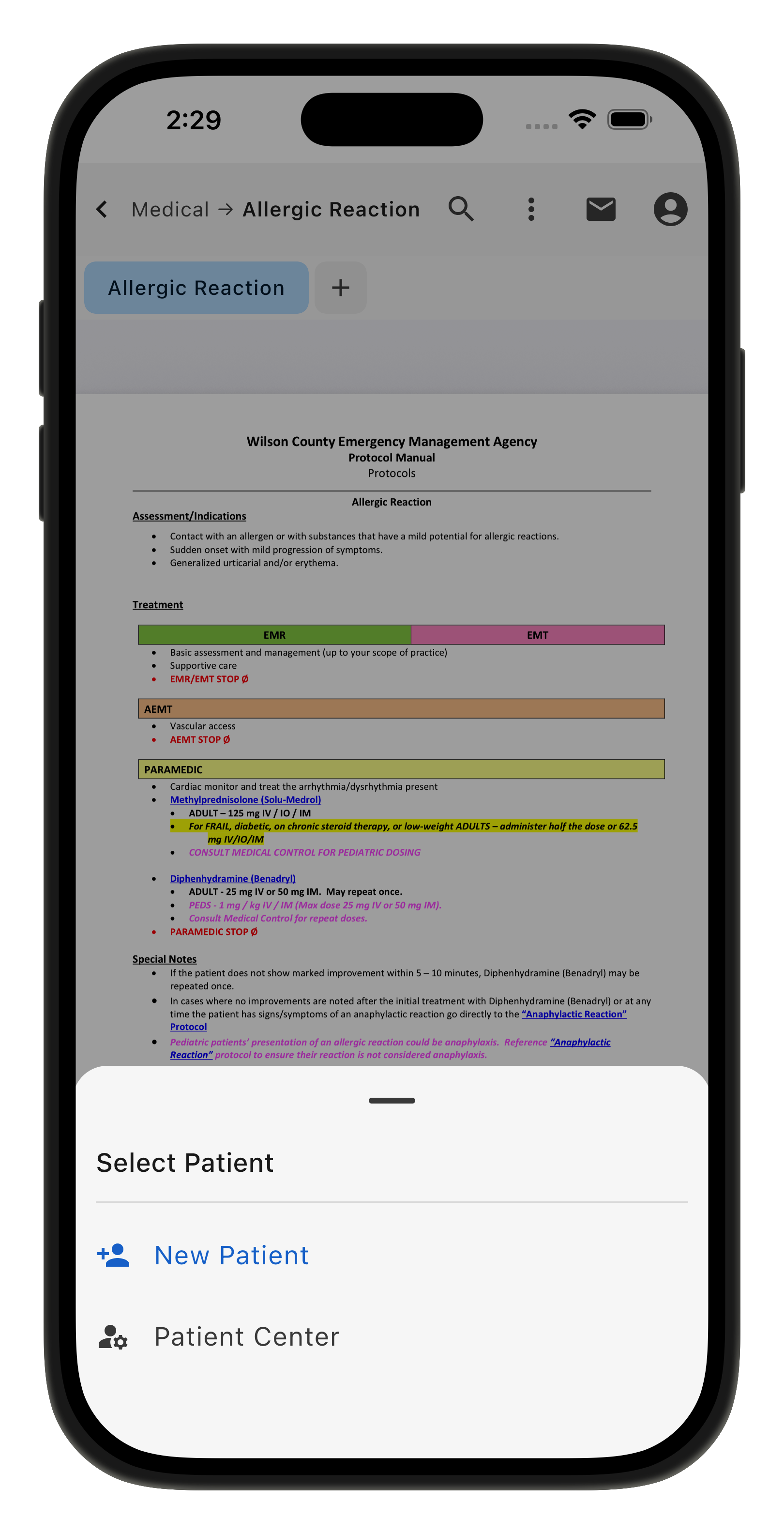
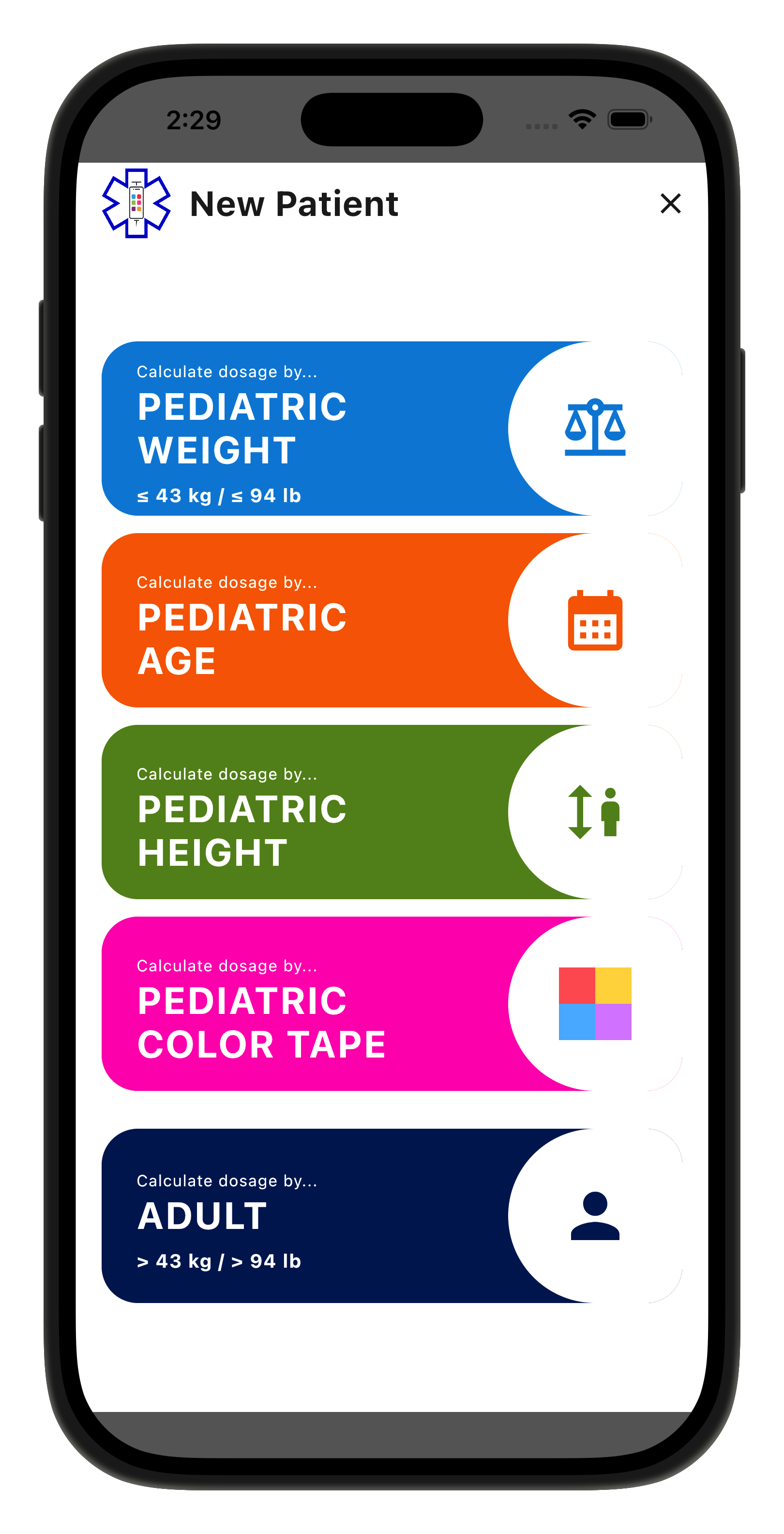
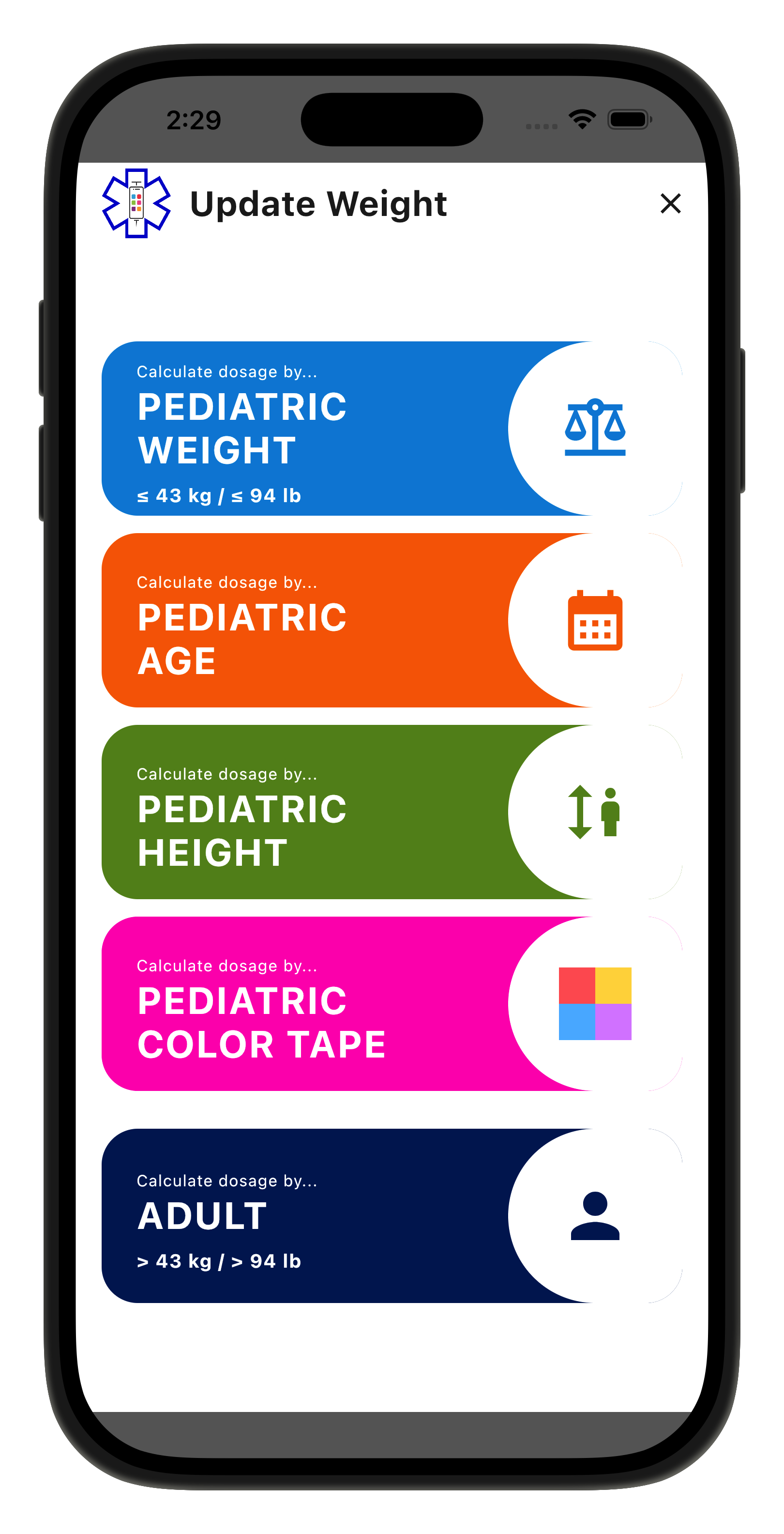
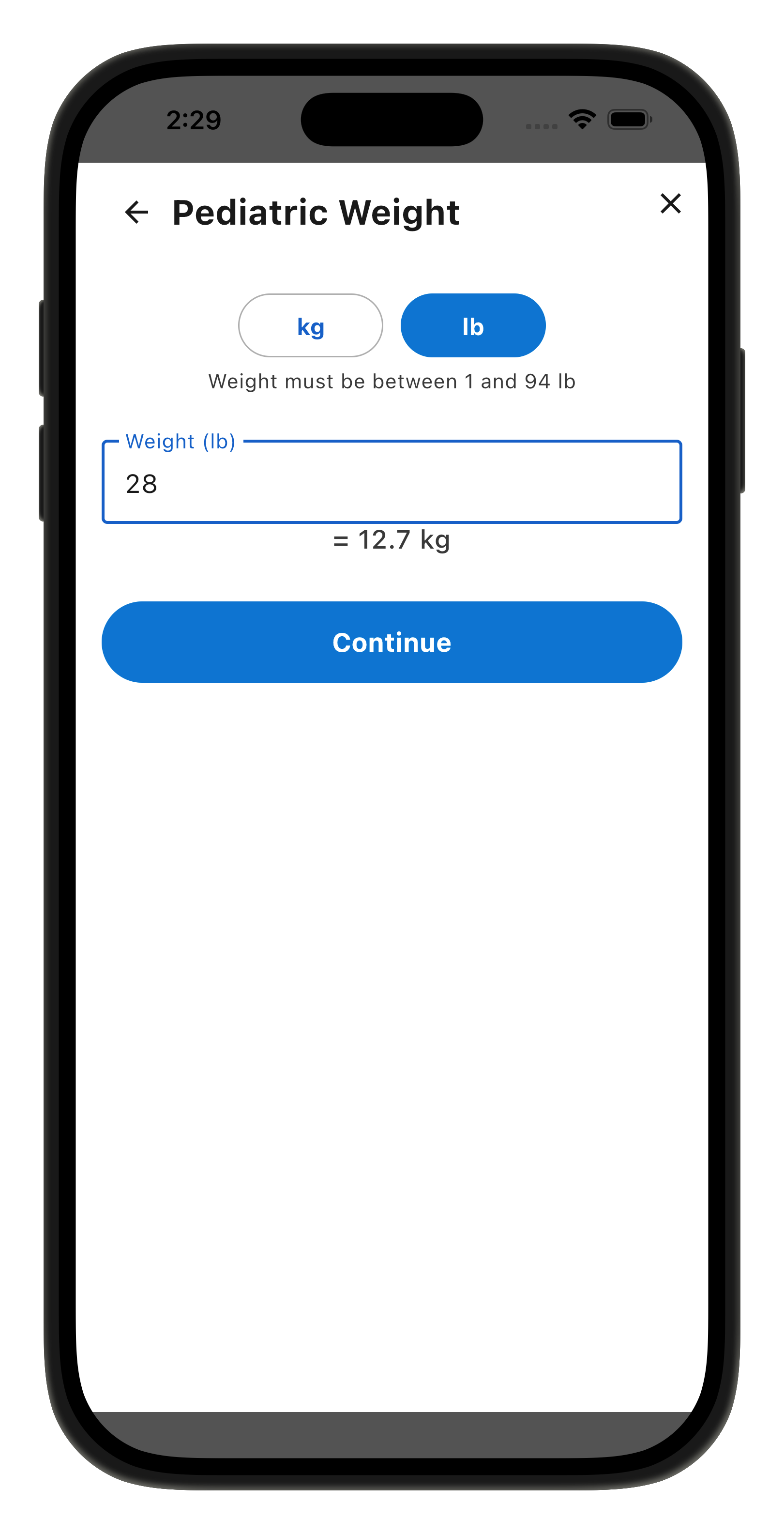
When starting a new patient, start by entering their demographics: weight, age, height or color tape for pediatrics, for adult just estimated weight.
If you estimate the weight by age, height, or color tape, you will see a warning banner reminding you that it is just an approximation. Exact weight is preferred for most accurate dosing.
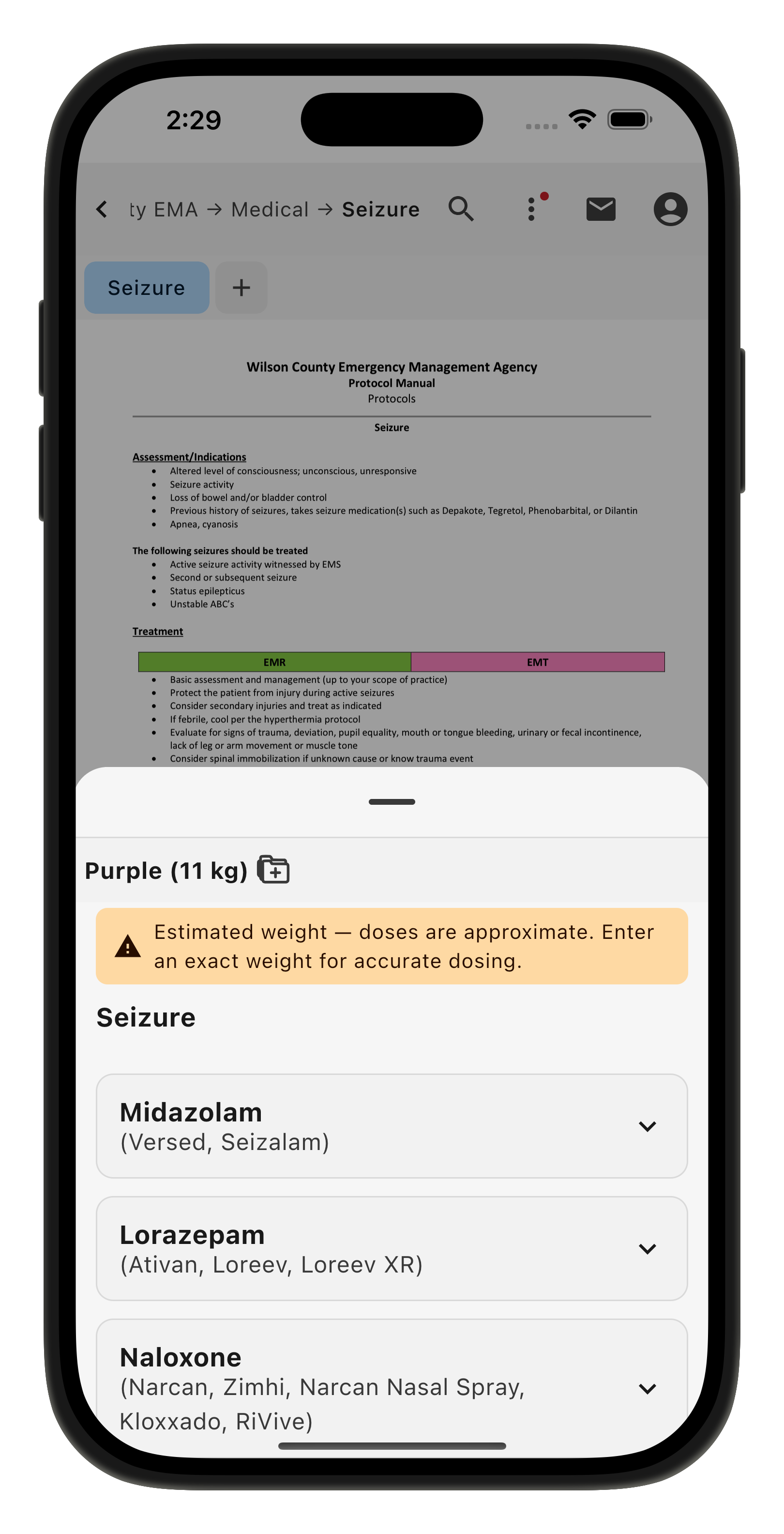
With the weight entered, you can swipe up to see each medication mentioned in that protocol. If needed, you can swipe down to return to the protocol.
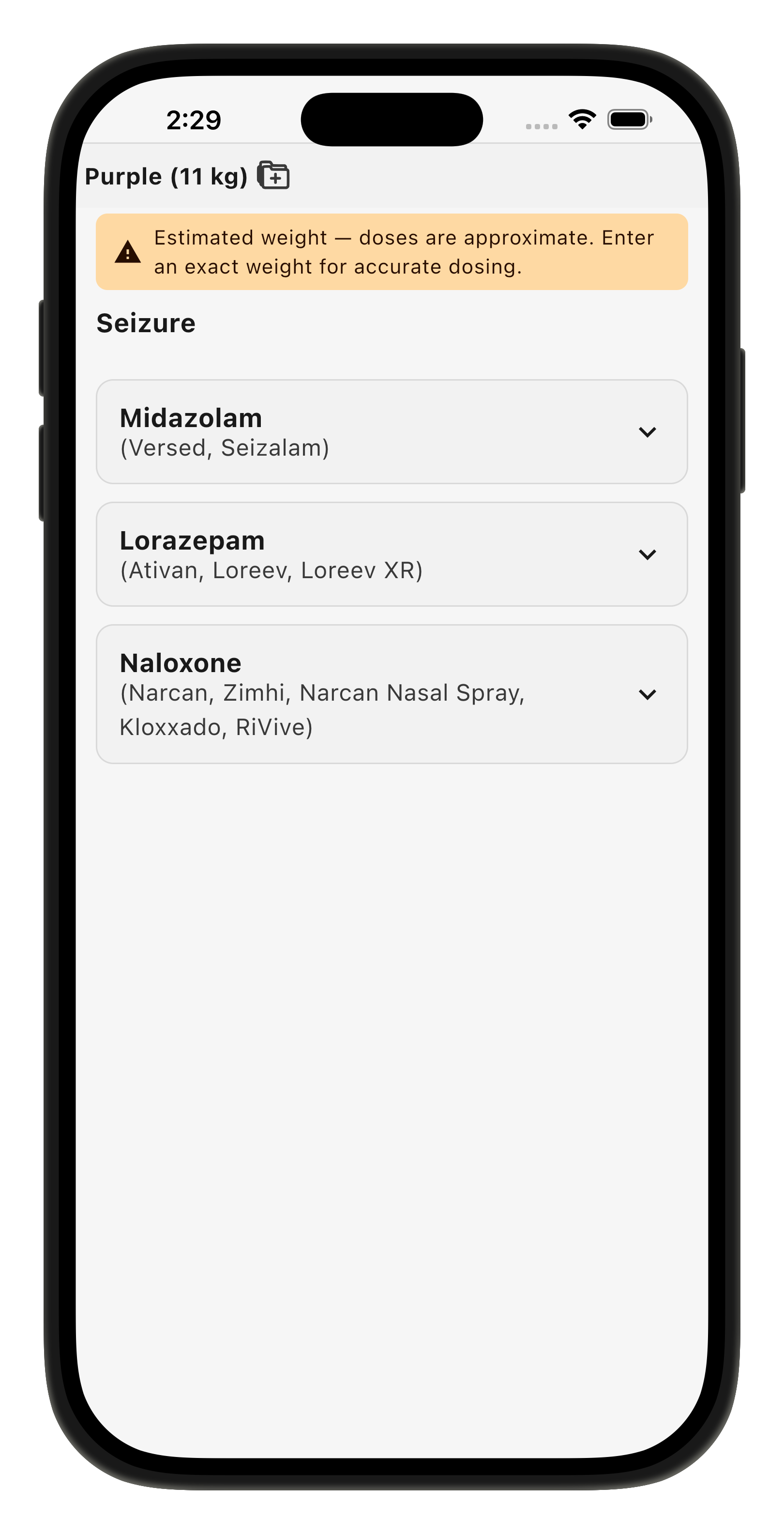
Tap a medication to see the dose and how much you should give to this particular patient.
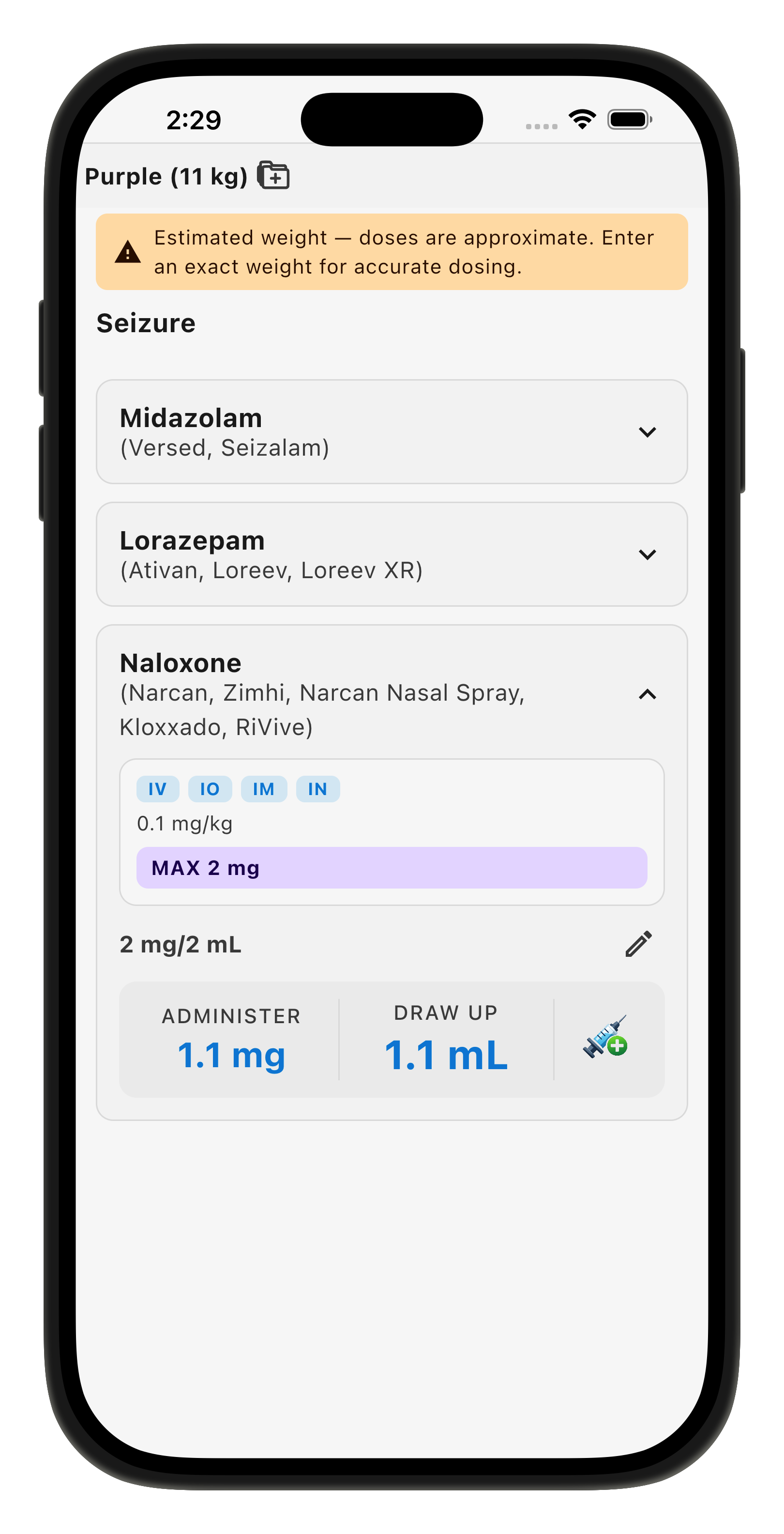
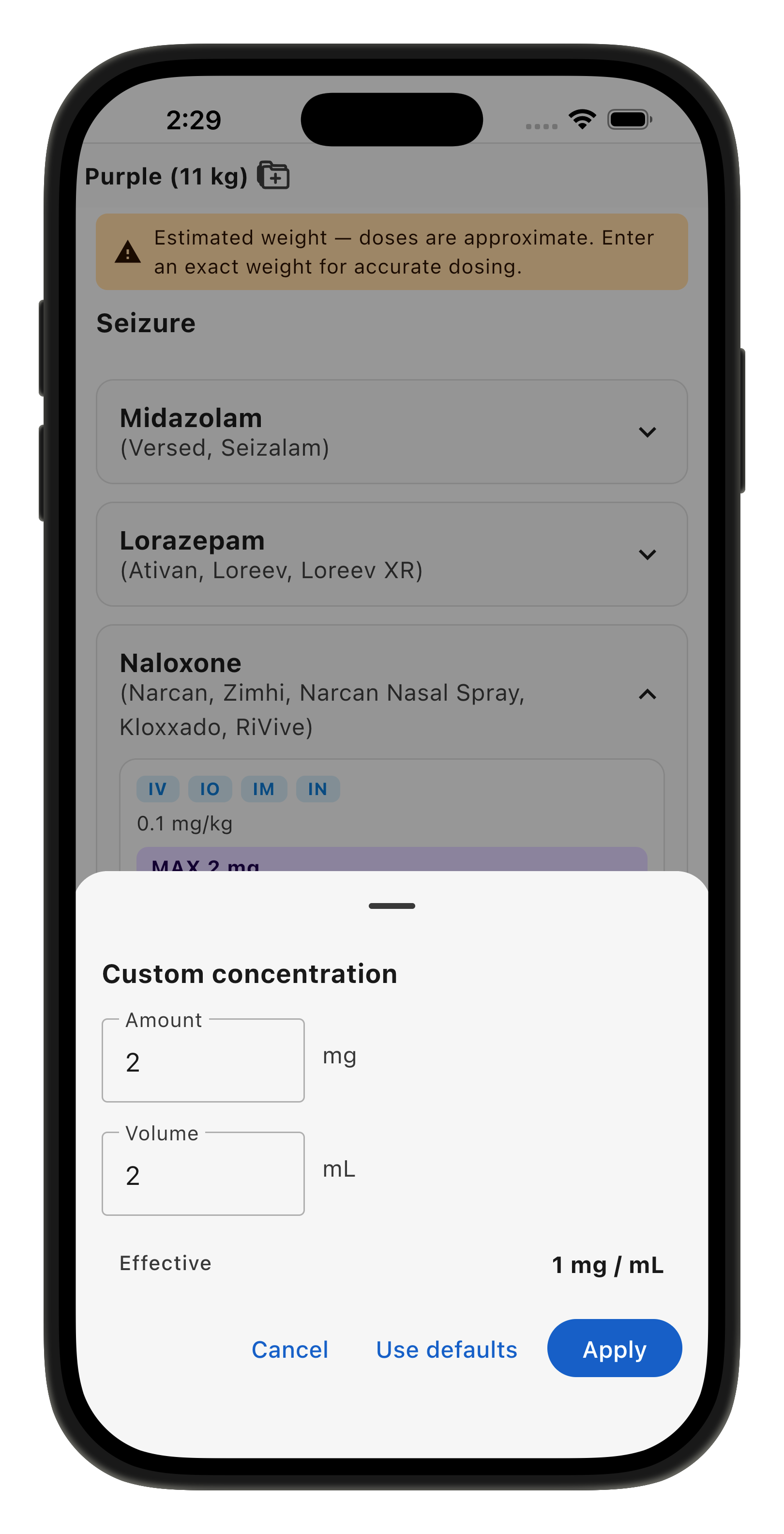
If your agency carries multiple concentrations of a medication, you can tap to select the one you have on hand. If needed you can also tap the pencil icon to enter a custom concentration.
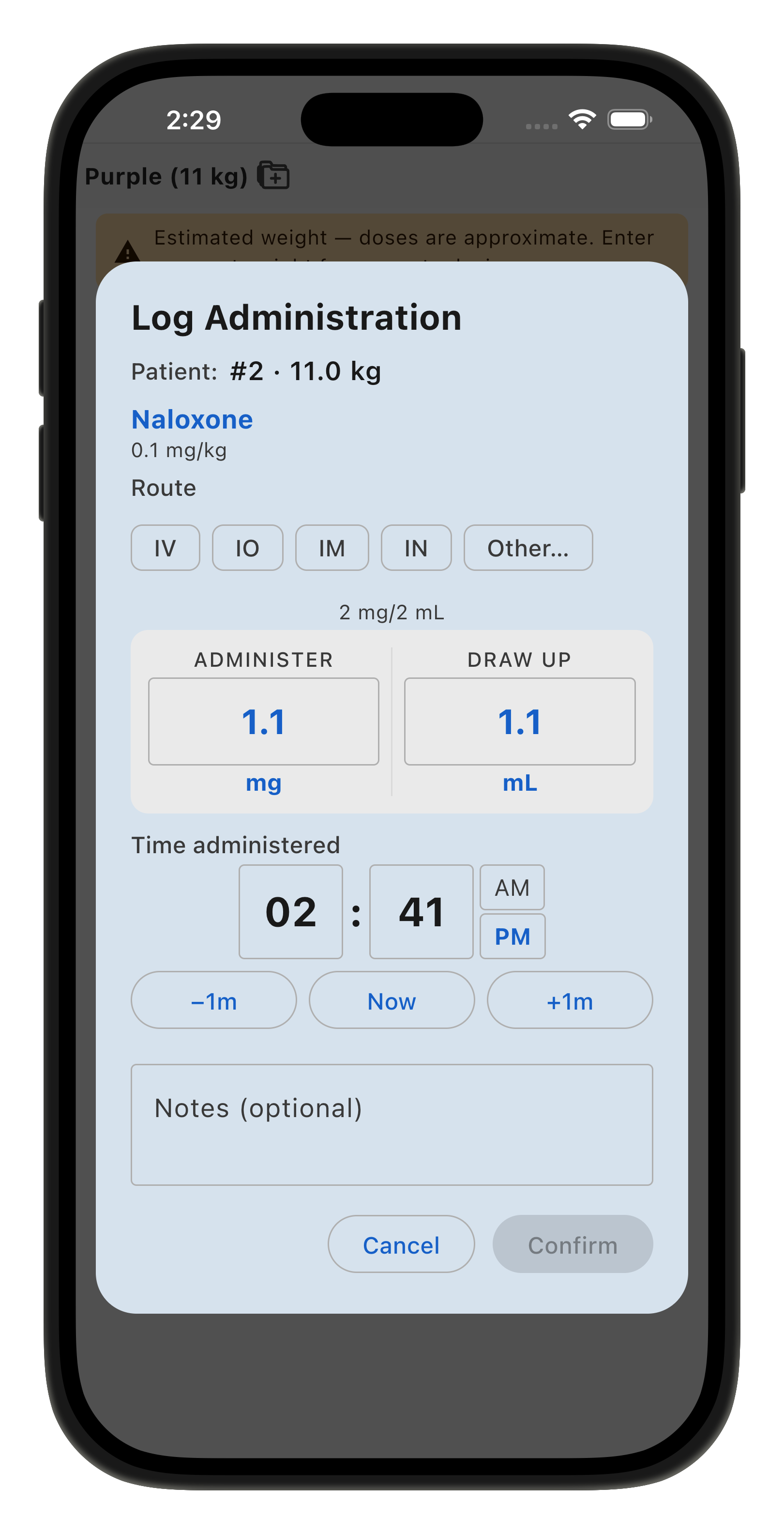
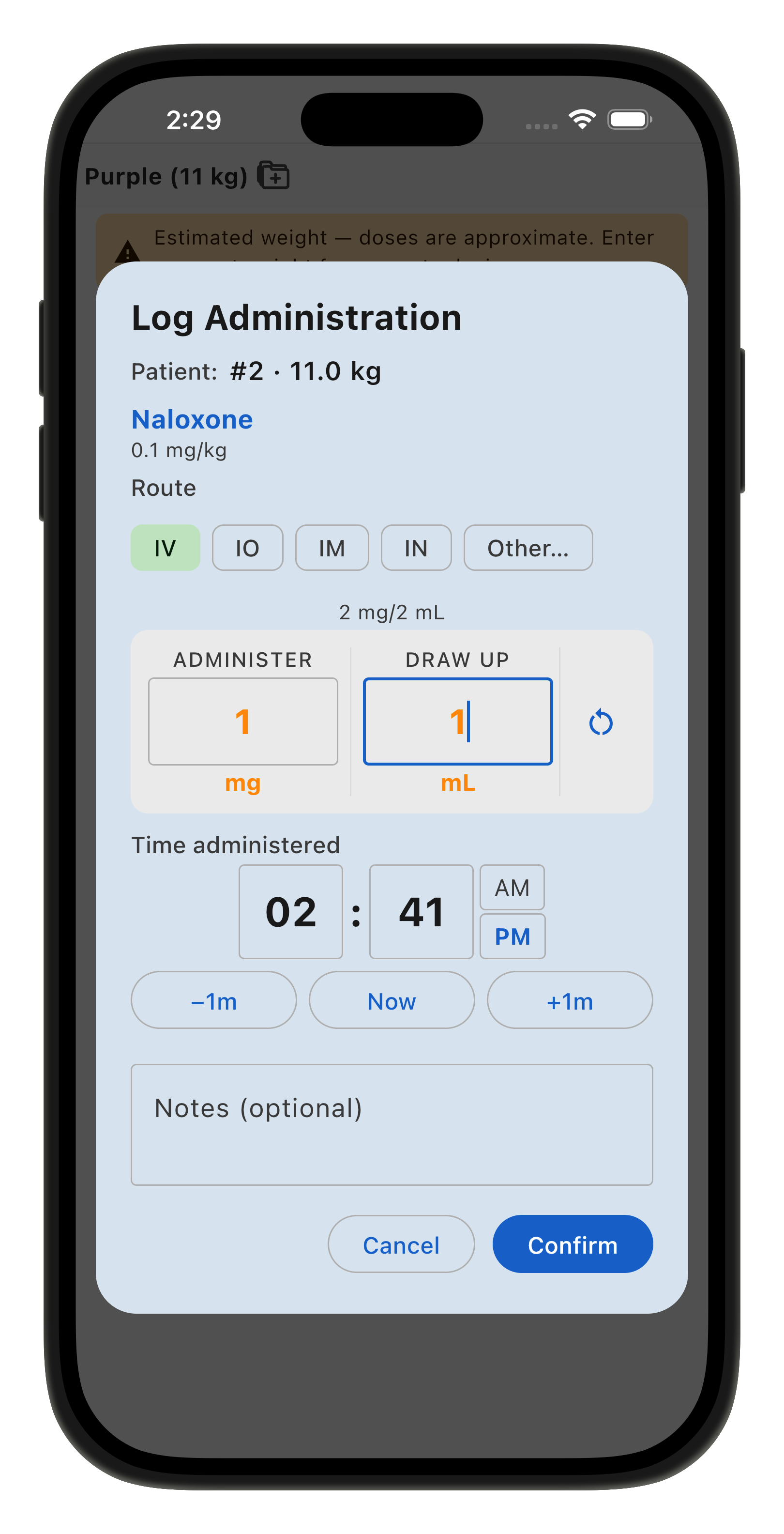
Tapping the syringe will bring up the logging panel where you can document how much you gave.
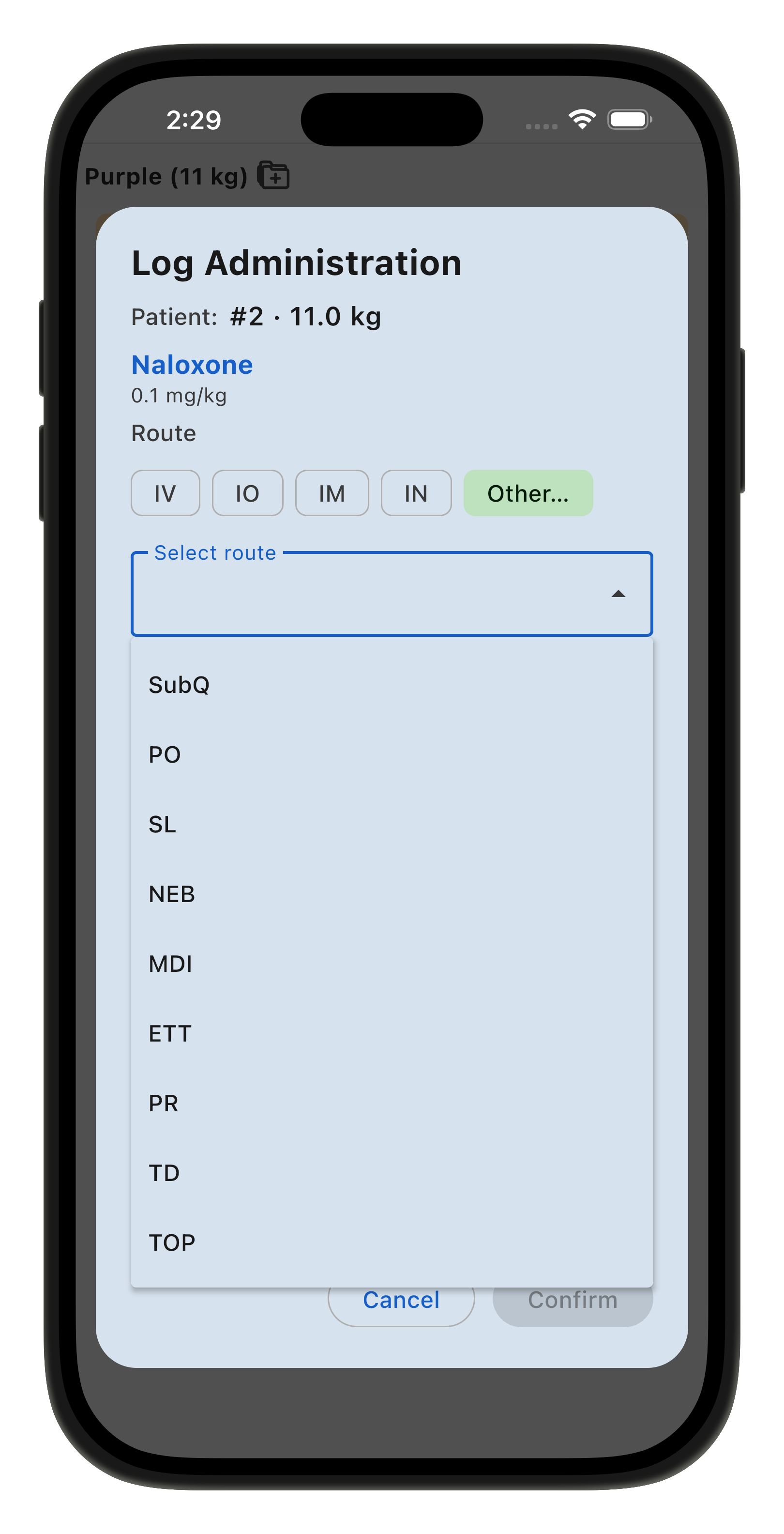
This page is intended to capture real data, so you can adjust the routes if you were not able to give the drug the preferred way.
You can also indicate exactly how much you administered if there was any rounding as you prepared the dose. There is also a place to include any additional notes you might have from that call.
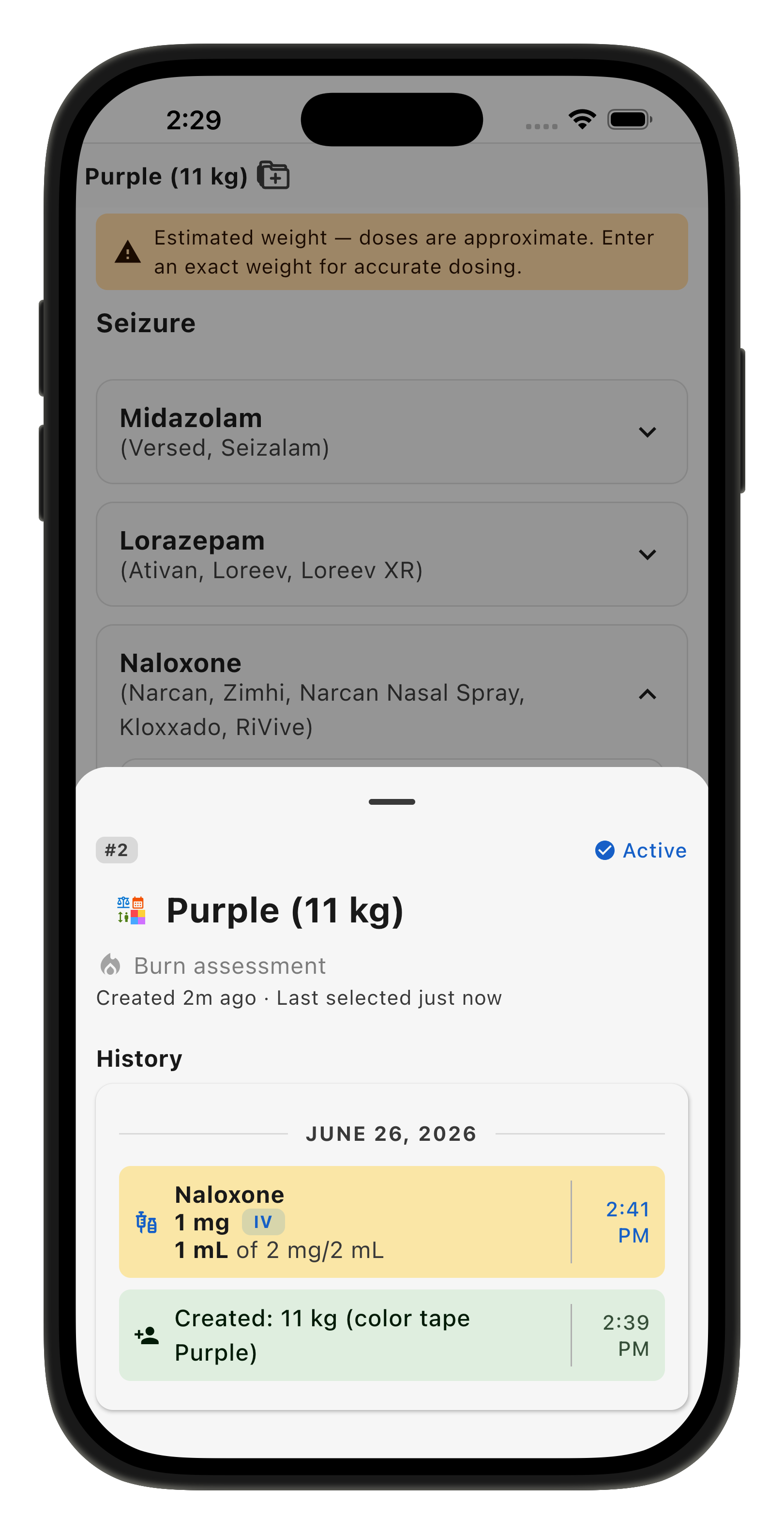
You can tap the patient information in the upper left (in this example, "Purple (11kg)") to view your running log on that patient.
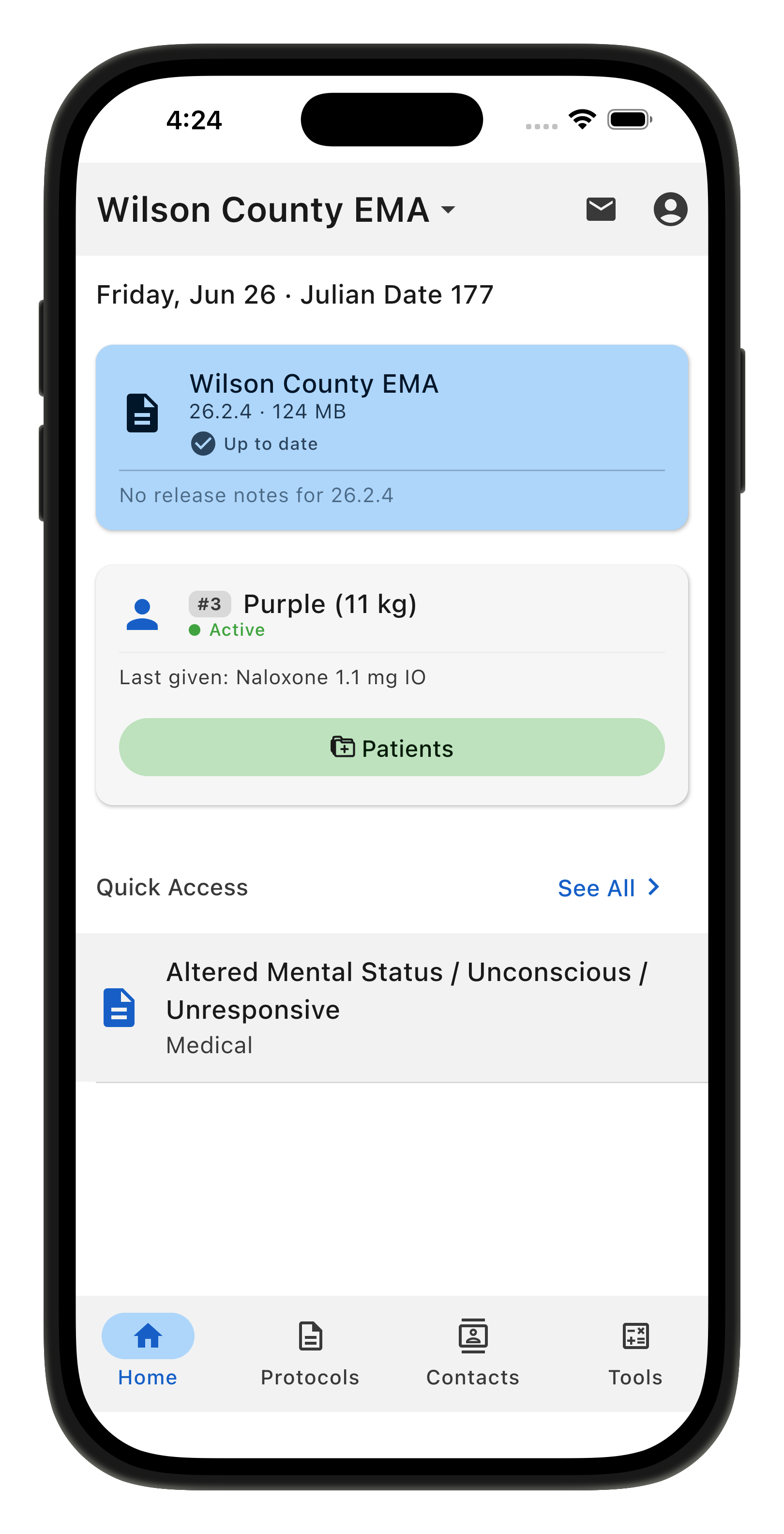
Once you’ve created a patient, they will appear on the home page.
If you need to adjust your patient information, you can tap the icon next to their weight.
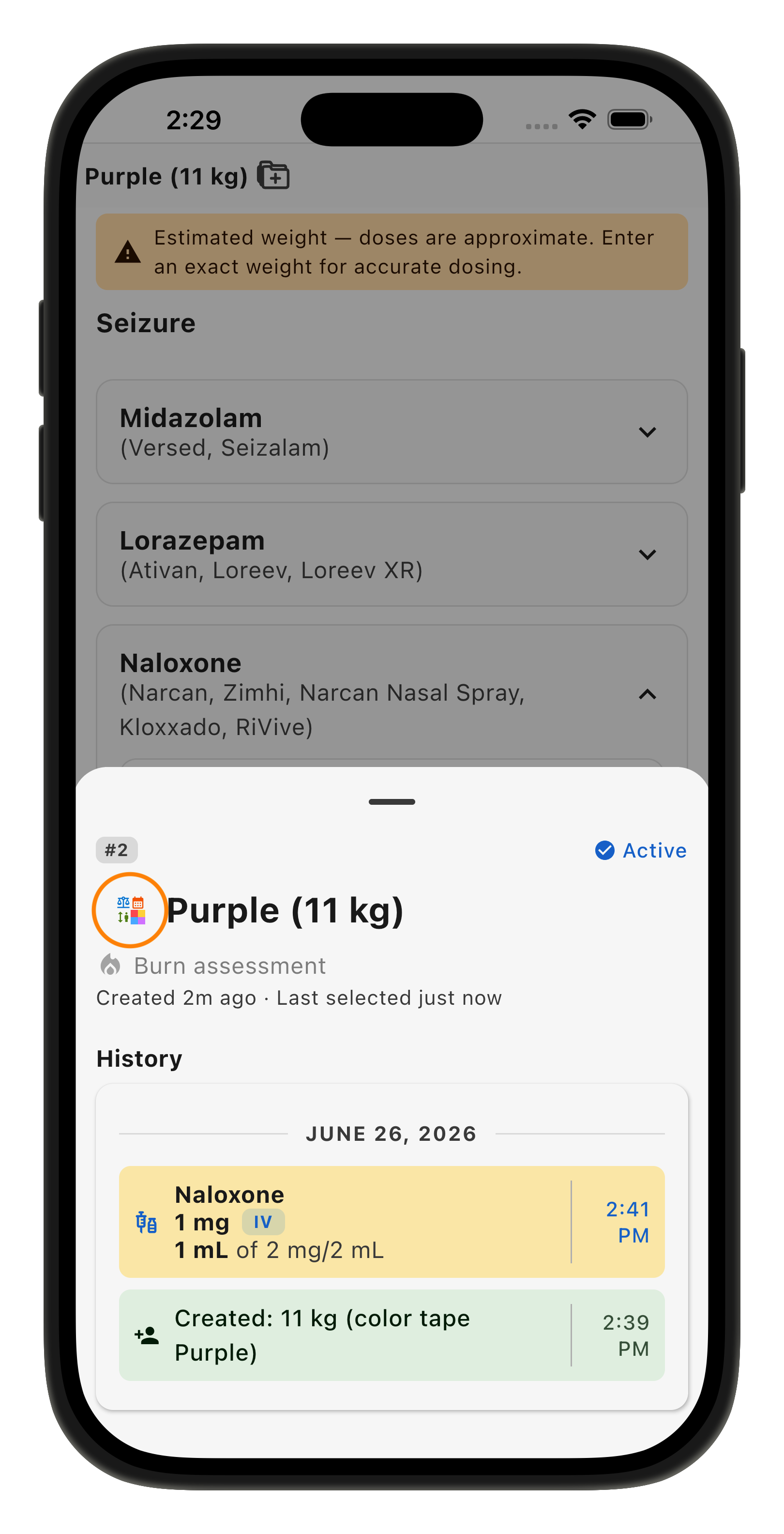
This will pull up the initial Pedi-STAT overlay where you can then update the patient with a new weight.
Tools Tab
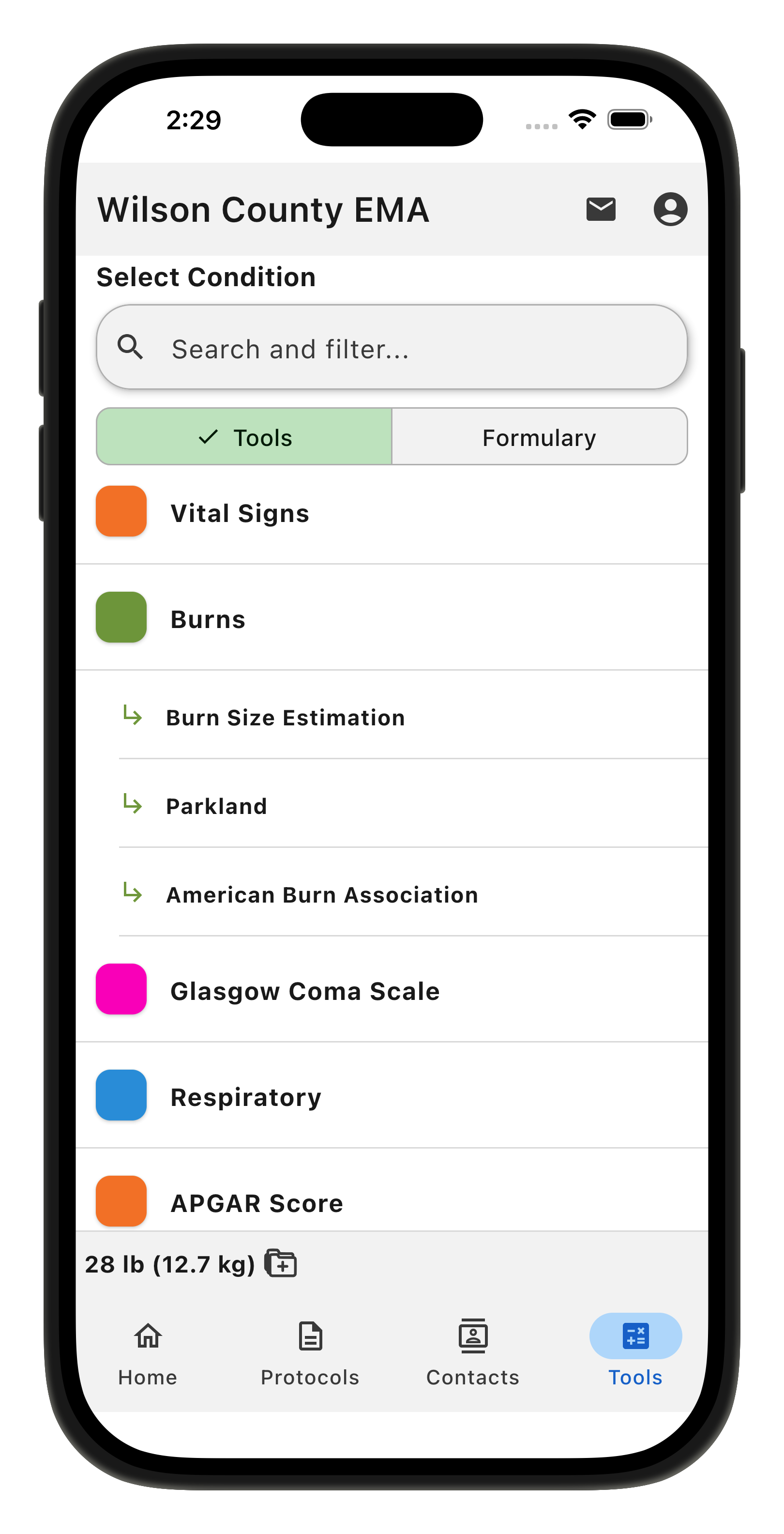
For those using the calculator, there will also be a new “Tools” tab on the bottom of the app.
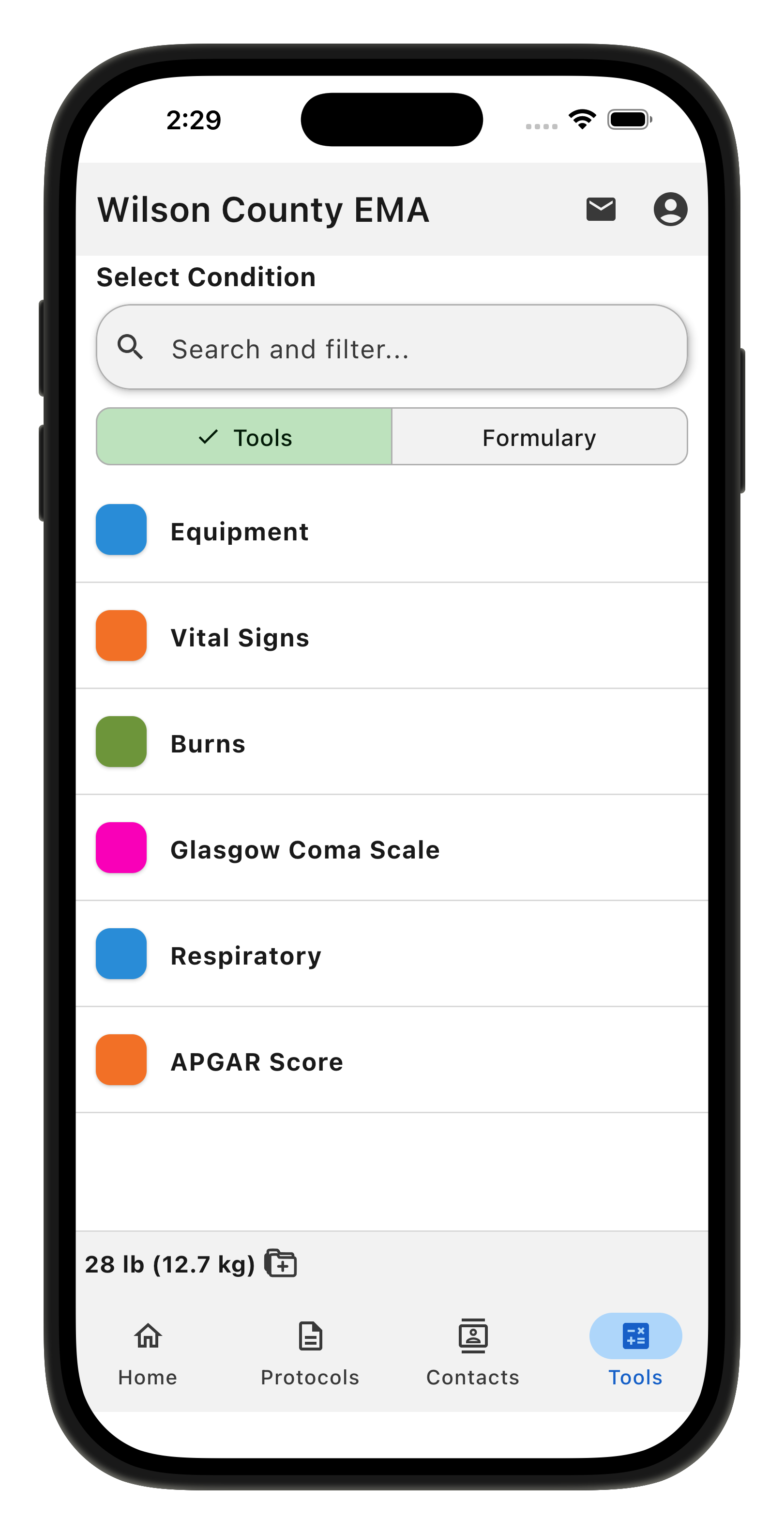
From here you can view equipment sizes for your patient.
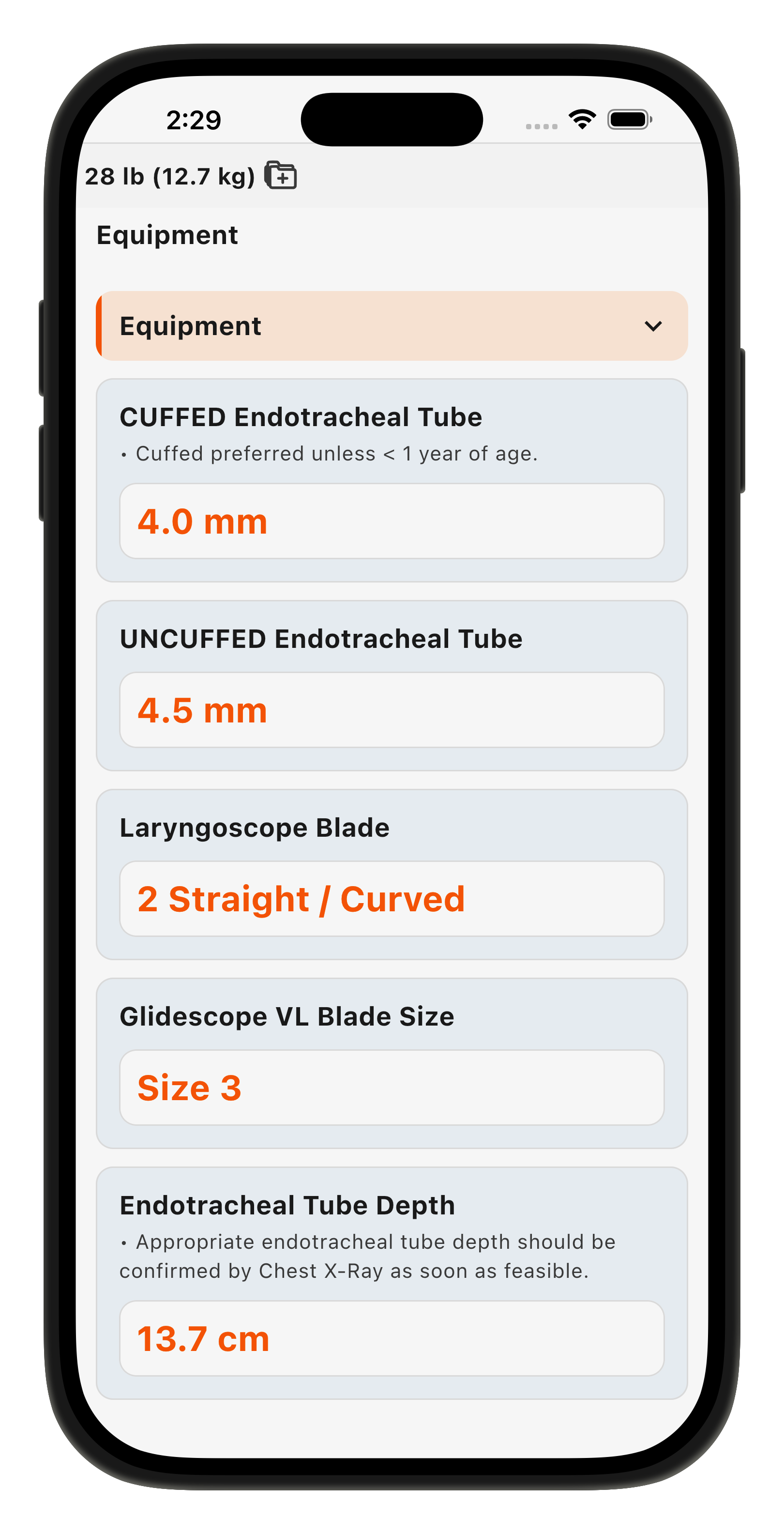
From the Tools Tab, you can also go directly to a medication you need to administer.
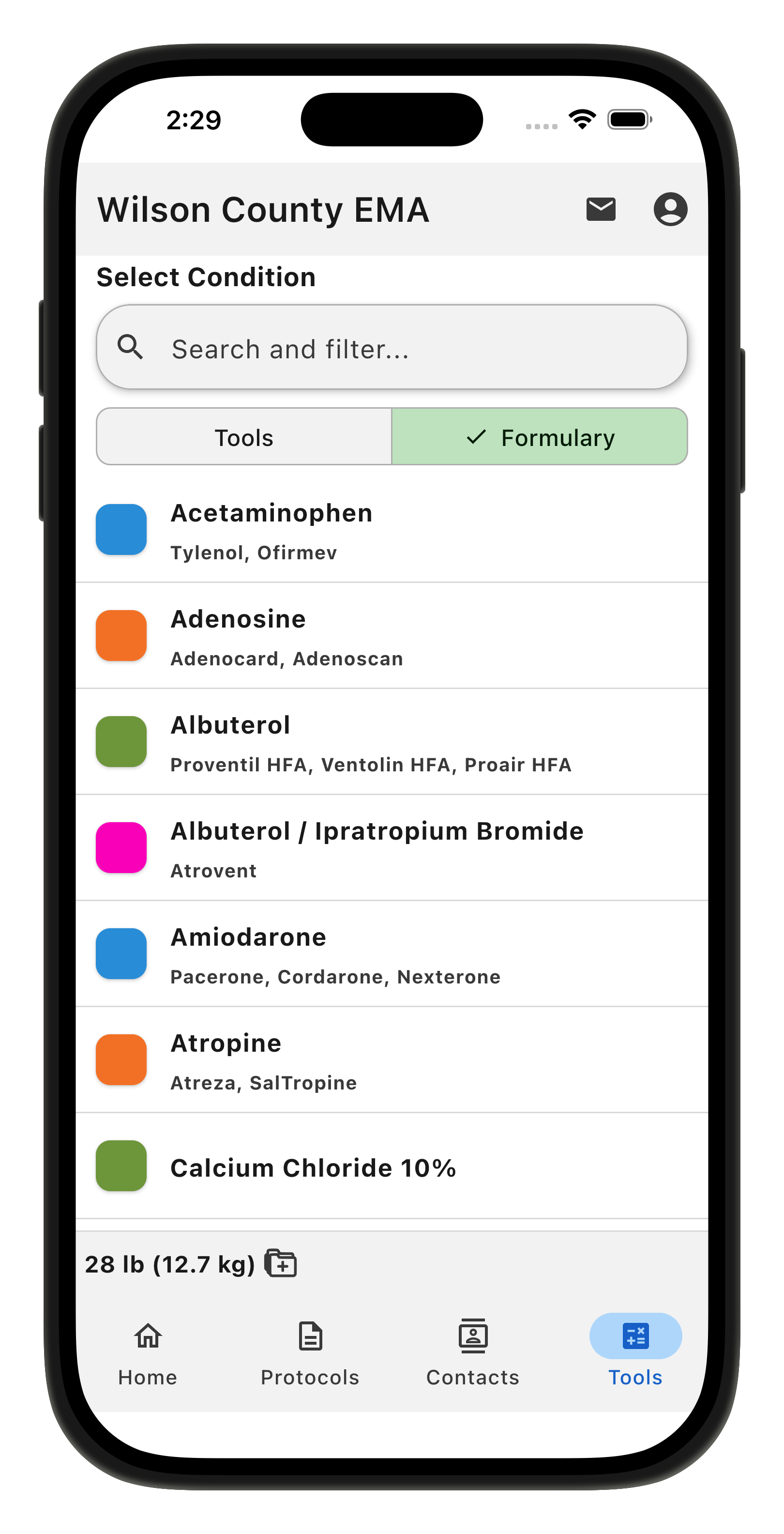
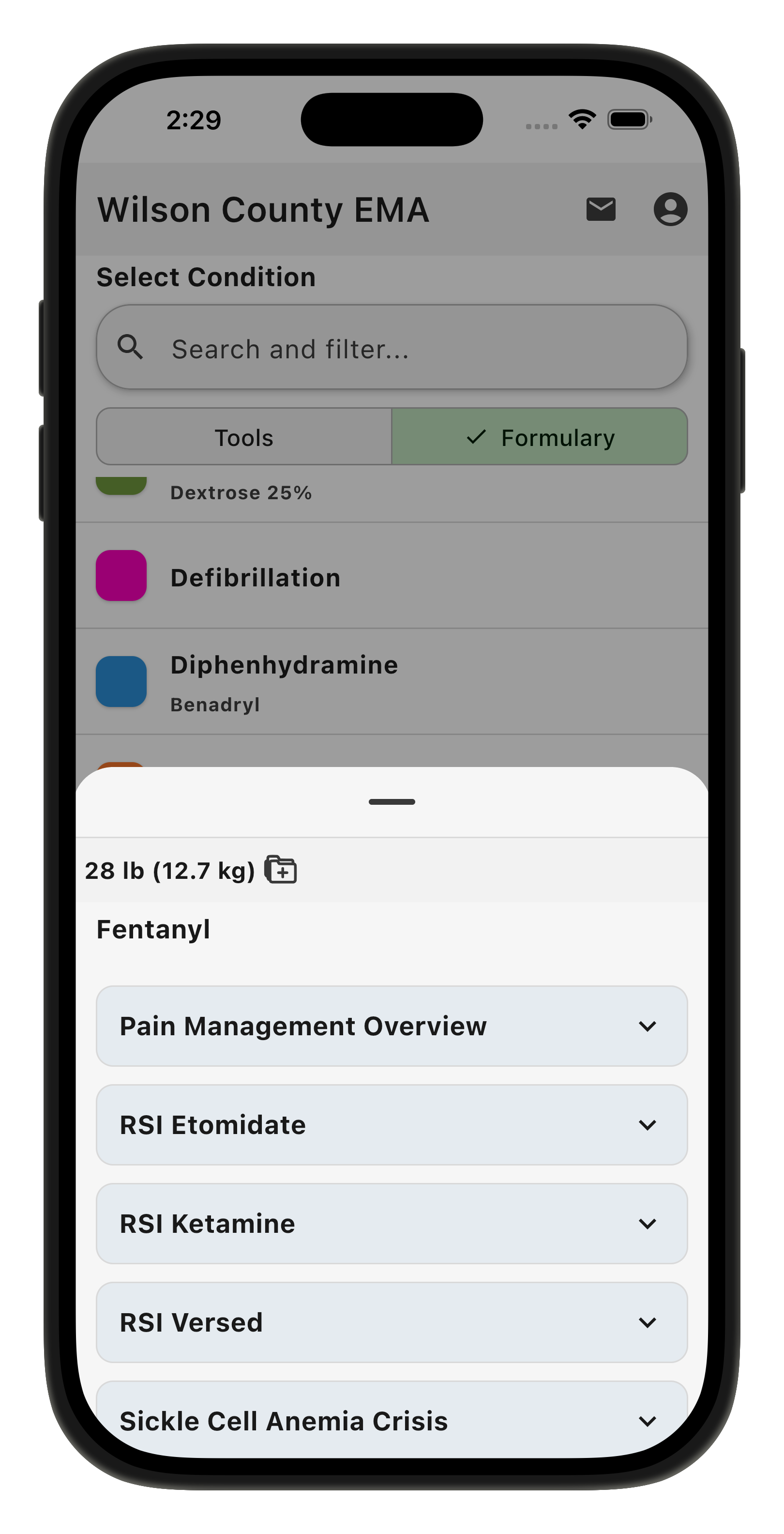
If you select a medication from the Tools Tab, you will see all protocols that use and reference that drug. You can tap on the protocol name to see how much you should administer for that protocol.
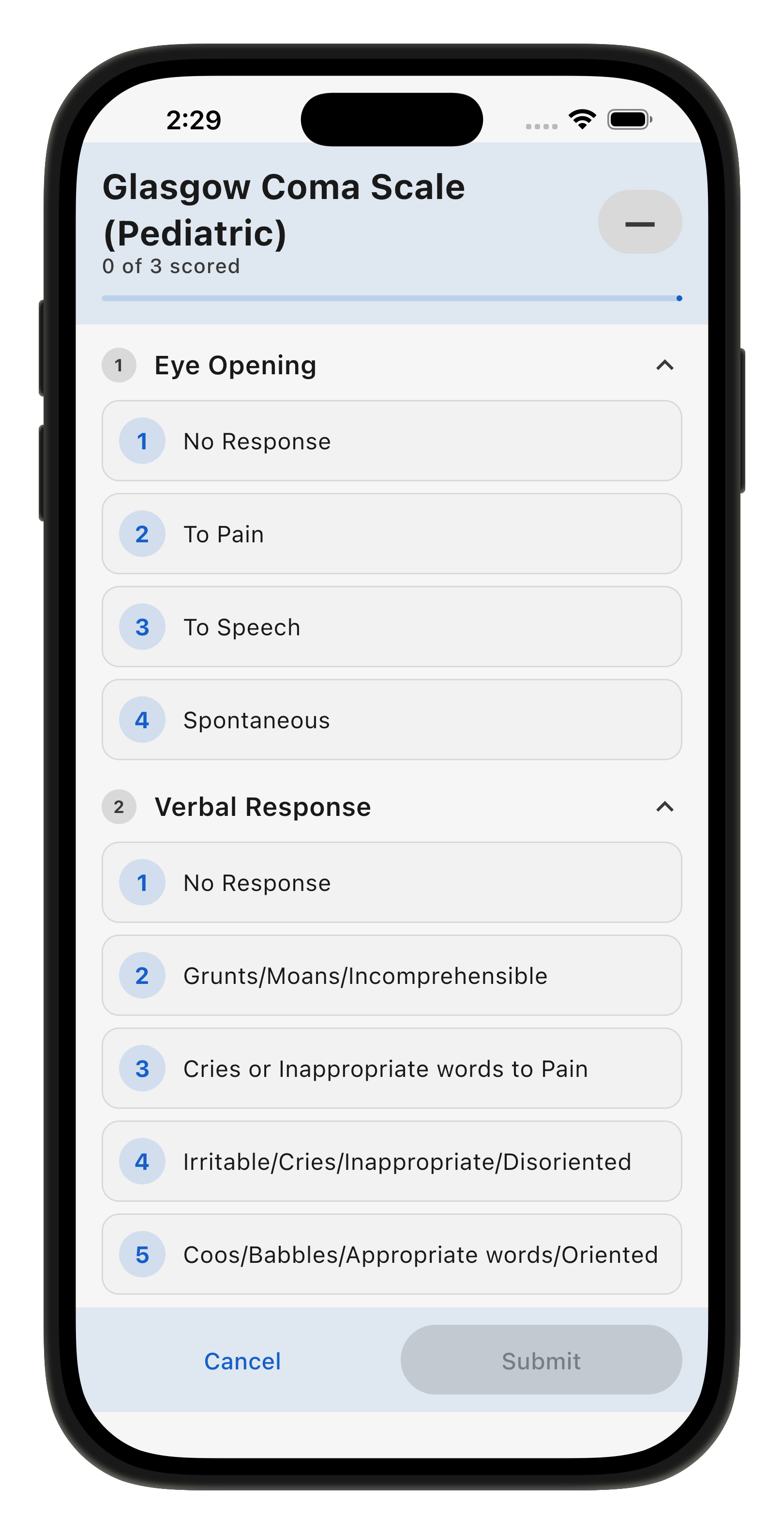
The Tools tab also lets you enter the Glasgow Coma Score.
There is also an interactive Burn Estimation tool.
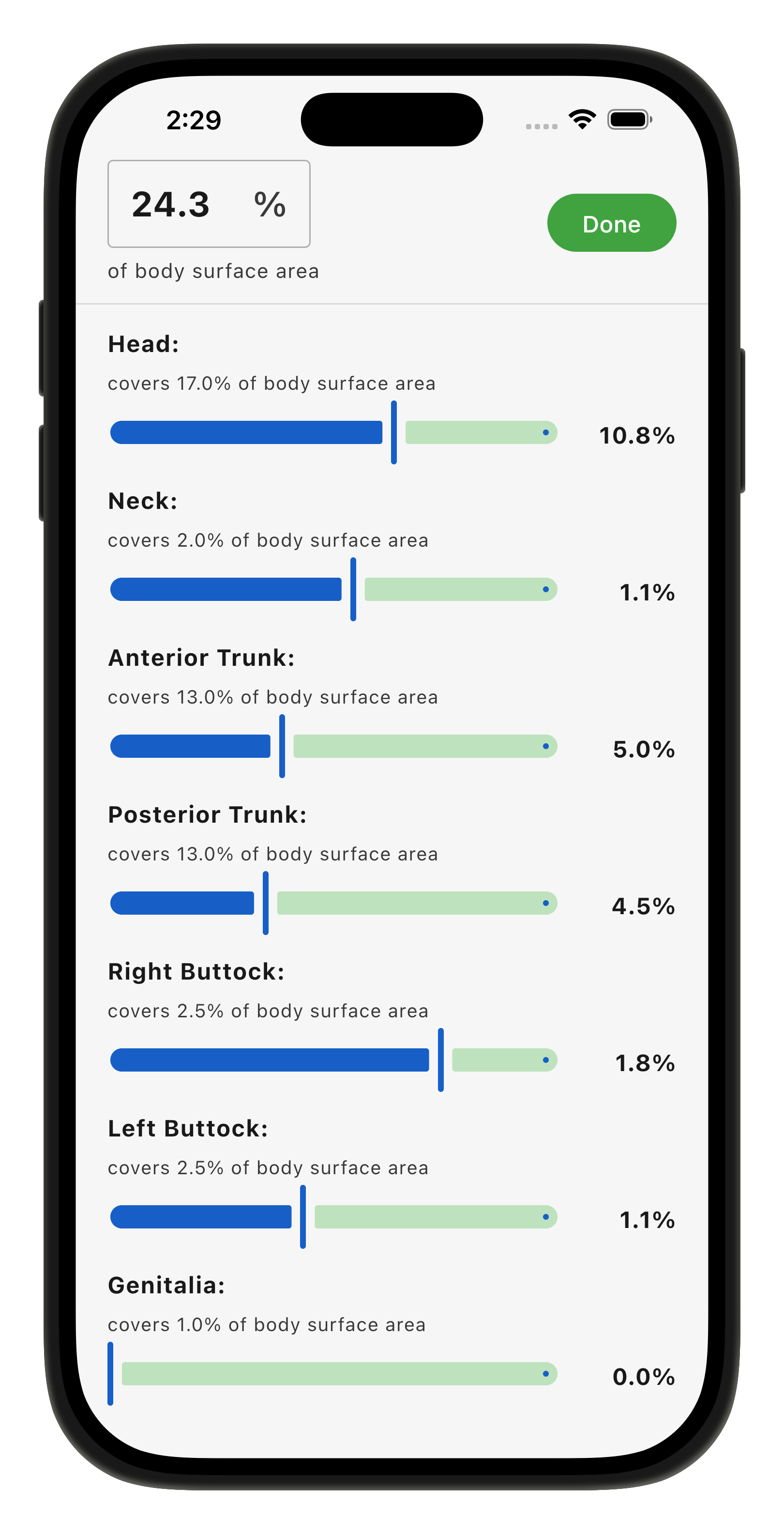
All assessments are logged to your patient and viewable in the Patient Center. You patient will stay in the patient center until you delete the data from your device.
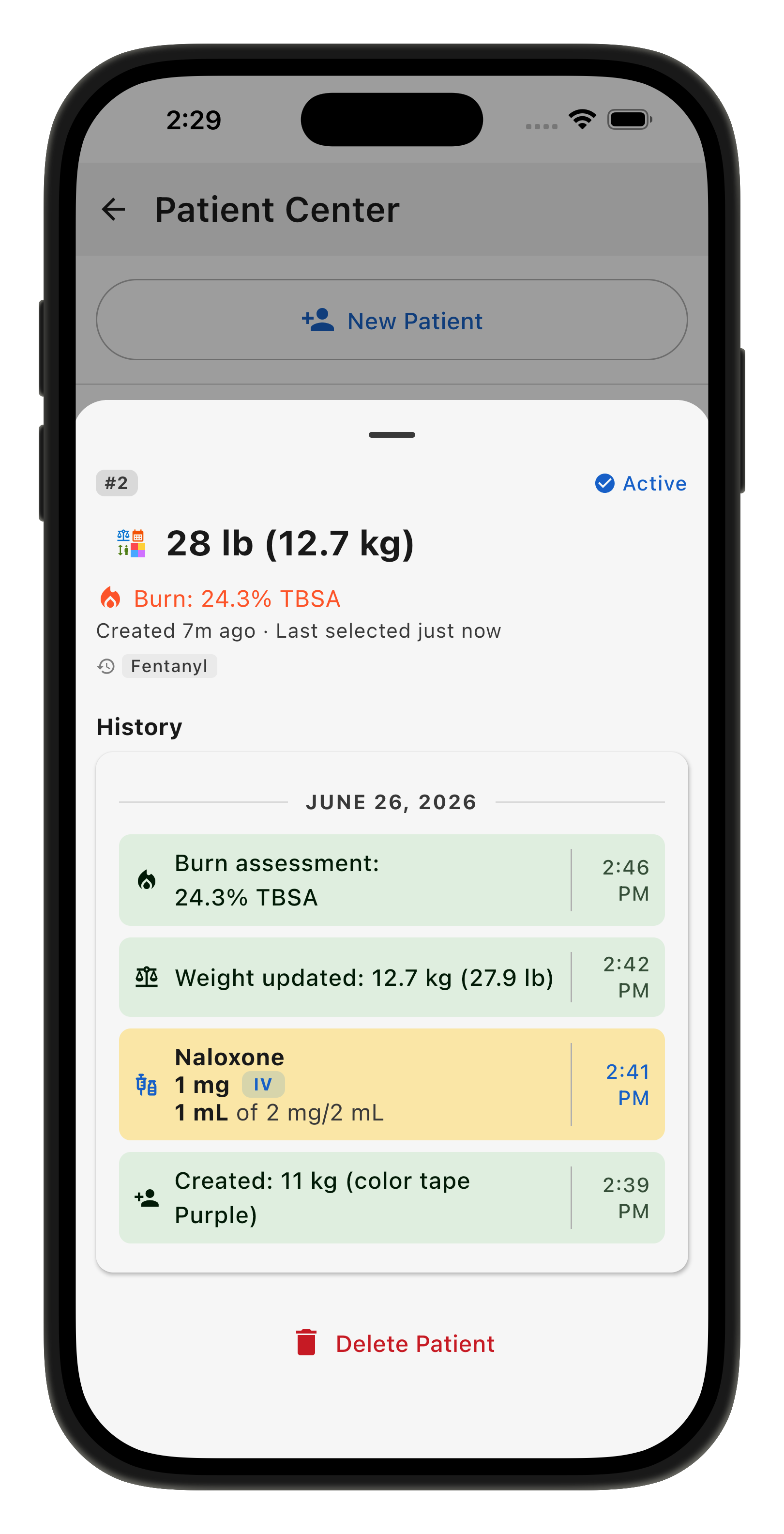
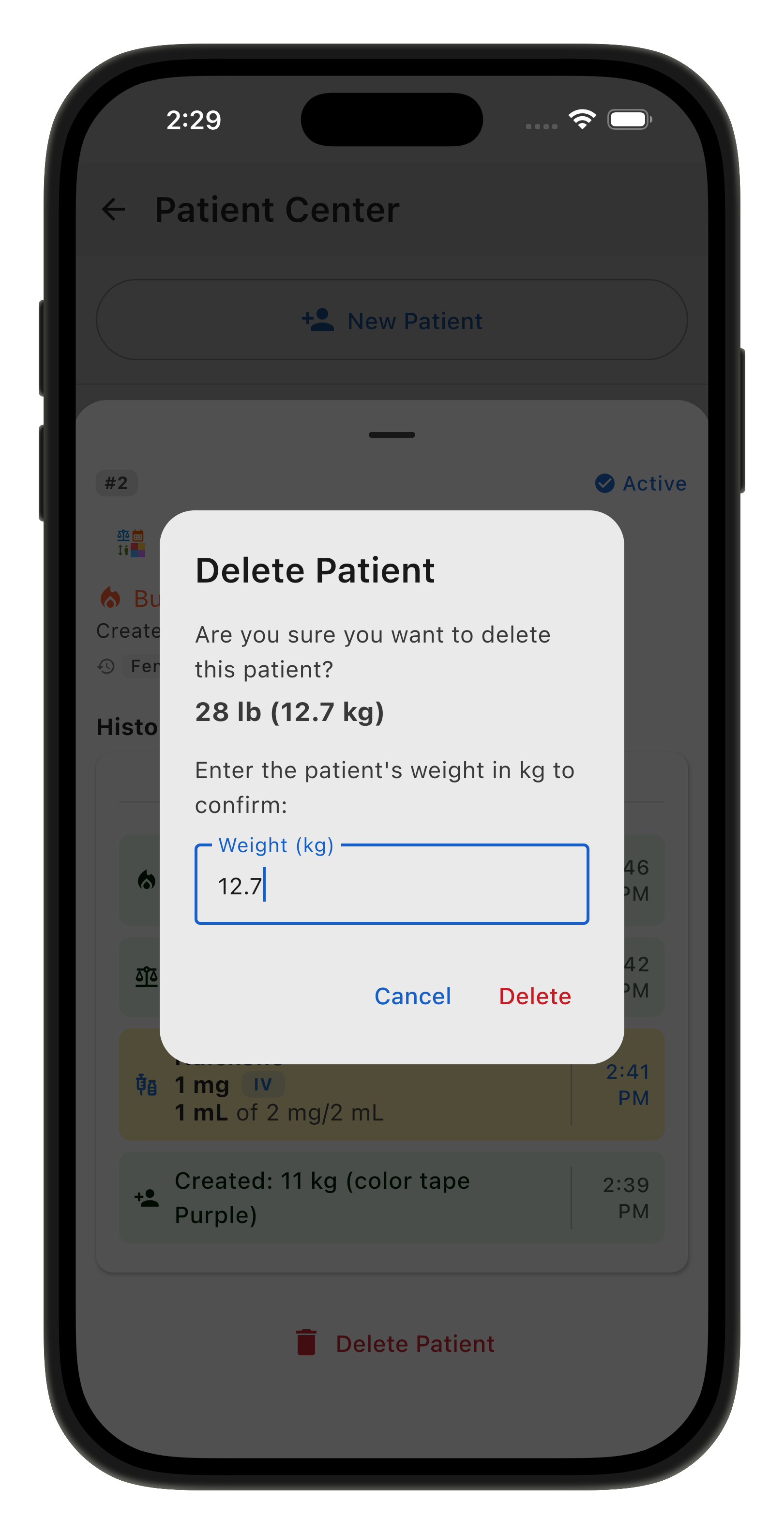
If you wish to delete the patient log, you will have to put in the weight (in kilograms) to confirm deletion.